Background
View a Clinic’s Intervention List
View a Client’s Intervention List
Notifications Window
Intervention Sets
Enter an Intervention (With or Without Repeats)
Edit an Intervention
Complete an Intervention (With or Without Repeats)
Close Series of Interventions
Cancel an Intervention
Managing Repeating Interventions - New Updates
If You Accidentally Complete an Intervention
Intervention Codes
Troubleshooting
Intervention Plan Needs to be Reopened
Related Articles
Background
An Intervention is a reminder that is set in Profile EMR to recall a patient for a specific clinical reason. It can be set as a singular Intervention/Recall, or as a repeat Intervention in an interval e.g. depot injection every 2 weeks; pap test in 3 years. Follow your clinic’s protocol when creating, editing and completing Interventions.
View a Clinic’s Intervention List
The Intervention list for the entire clinic can be viewed from the Work Center's Clinical section.
1. From Work Center
2. Click on Clinical bar at the bottom of the page and a menu will appear.
3. Click on Intervention List bar
4. The clinic’s Intervention List will appear. Adjust the View filter with the following options:
5. To further sort the Interventions, click the top of any of the columns and the list will sort according to e.g. client, clinician, intervention, status etc.
Note: The appointment column displays the next booked appt (regardless of POS) in italics. If the appointment is linked to the intervention, the appointment displays in regular formatting.
View a Client’s Intervention List
A client’s Intervention list can be seen in multiple places in their Medical Record. The two main places are in the: Notifications Window and Intervention Sets section
Notifications Window
The Notifications window provides you with a list of interventions for the client that are coming due within 60 days or are past due.
Key functionality you need to know:
- Double clicking the intervention will open the Intervention details where you can view, edit, or complete the intervention
- Bolded Interventions mean the intervention is overdue
Intervention Sets
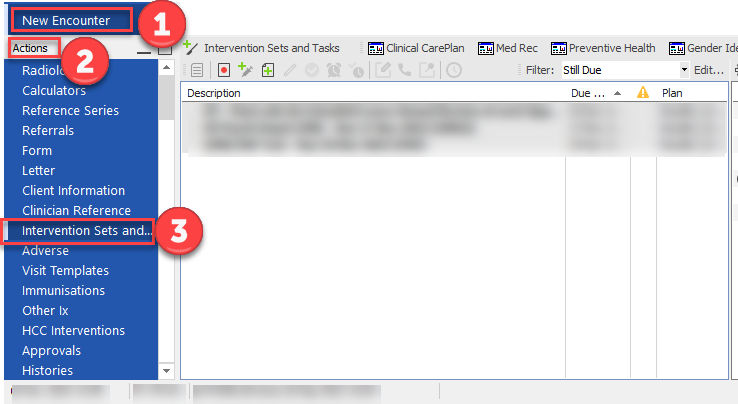
To view a client’s interventions that are upcoming, past due or complete, you have two options: view within the Medical Record (click Intervention Sets) or within a New Encounter in the Actions panel (click Intervention Sets and Tasks).
Some interventions are created as a single or repeating Recall (No Plan) e.g. Pap test, and others have Plans (with pre-set interventions) e.g. Chronic Disease Management Forms
a. Medical Record > Intervention Sets:
b. New Encounter > Actions > Intervention Sets and Tasks:
Enter an Intervention (With or Without Repeats)
The most efficient way to enter an intervention is by clicking the New Intervention short-cut icon located on the top of the page.
1. Single click the New Intervention short-cut icon and an Intervention window will pop-up
2. Enter the Intervention due date. Today’s date will default in the second window. If you want to start it on another date: either edit today’s date or open the drop down in the first window and select the correct time interval – the start date will set to that time interval.
3. In Reason field, you can either use an Intervention Code (see Section 10), or click on the ellipsis to bring up the Select Service Code window to search for a reason
Alternatively, you can free text in the window below the Reason field.
Note: Always follow your clinic’s protocol when entering Interventions.
4. Set the Repeat if the Intervention is to be completed at regular intervals of time e.g. every 4 weeks.
5. The Until window should be left blank UNLESS the intervention has a specific end-date. Note: entering an end-date for ongoing medications can result in the Intervention not appearing in the Intervention List.
6. Click OK
Note: System will automatically add the due date at the end of the intervention title.
Tip! If you would like to add additional information to the intervention without affecting the sorting ability on the intervention list, add this in the Comments field
Click on More > button to expand the Intervention window
In Comments field, enter additional information like medication name
Edit an Intervention
Interventions can be edited from the Intervention List, Notifications Window, or the Intervention Sets tab in the medical record.
If any text needs to be added to the intervention title, it should be added infront of the due date that is automatically added by the system , as indicated below.
To edit an Intervention, repeat the same steps above:
1. Right Click and select "Edit Intervention".
2. Modify the free text reason field to your desired state.
3. Click Ok.
Important Note: Any text that is typed after the due date will be deleted by the system when saving the intervention.
Complete an Intervention (With or Without Repeats)
1. Once the intervention has been carried out with the client, go to the Notifications window and double click.
2. Click the Complete button within the Intervention pop-up window.
3. A second intervention window will open, select Complete. Enter in any comments if applicable. Then click on the OK button.
Note: For the interventions that are set to repeat, the next due date will be updated automatically when the current intervention is marked as Complete. This field can be modified by clicking on the dropdown in the Make Next Intervention For date field.
Close Series of Interventions
If the intervention set is no longer required and recalls should no longer auto-generate according to the repeat schedule set, follow the below steps, simply click the Close Series button.
Cancel an Intervention
At this time there is no Cancel Intervention option. On recommendation from Health Records, if you need to cancel an intervention, you can change the intervention to Excluded and add a comment to indicate reason for cancelling intervention.
Cancel a Single Occurring Intervention
Cancel an Intervention with Repeats (Series)
Managing Repeating Interventions - New Updates
These interventions can be edited under the Intervention Sets tab in the medical record. This can be done before or after completing the due intervention.
After the manually entered date is removed, going forward, the intervention title will only display the next due date added by the system.
If You Accidentally Complete an Intervention
1. If you accidentally complete an intervention, you can change it back by clicking the downward arrow and select Still Due from the menu and select OK
View Previously Completed Interventions
1. If you want to see all the completed interventions for the client, click on Interventions Sets
2. Then change the View Filter to All, Masters.
3. Expand the Recalls (No Plan) folder to review the list. Completed interventions will have a green
check mark next to them.
Intervention Codes
This is a list of codes when entering Interventions/Recalls. Interventions are abbreviated as IVN. See the Intervention Codes List article. You can also get the full list from the EMR Library.
Note: Follow your clinic’s protocol when using intervention codes.
Troubleshooting
Intervention Plan Needs to be Reopened
When a client's Medical Record is inactivated, this will close the client's Recalls (Interventions). If the Medical Record is re-activated, and you attempt to create an intevention, you will receive this pop-up stating the Intervention Plan will need to be re-opened. To reopen, email EMRhelp@vch.ca with the client's PARIS# and request the Intervention Plan be reopened.
Related Articles
Mouse Settings: Scrolling Alert
See Helpfile: https://vchprofileemr.zendesk.com/hc/en-us/articles/5834469487508-Mouse-Settings-Scrolling-Alert