Documenting on the wrong client
Documenting on the wrong client
Encounter notes will be automatically saved when you close the encounter, when you go from New Encounter to Medical Record/Encounters, or when you log off from Profile EMR. Your encounter note will also be saved after almost all of the common system problems (e.g. extreme slowness, spinning blue circle, no option to save Encounter, have to close EMR, or force quit, or reboot the program/computer). This help file includes trouble shooting tips for unwanted saves.
Scenario 1
I clicked on New Encounter and before I typed anything, I closed it again – will a blank encounter be saved?
No – you have to enter text or add a problem before auto-save happens.
Scenario 2
I clicked on New Encounter, started typing and/or added a problem title, then changed my mind and deleted everything - will a blank encounter be saved?
Yes – Auto-Save will save your blank encounter. Auto-Save happens anytime you have taken any action in New Encounter window
Scenario 3
I auto-saved a blank encounter (as in scenario 2 above) and want to get rid of it.
Go to Review Encounters, Double Click on the blank encounter and it will open for you to edit. Type Blank encounter saved in error or similar wording per your clinical practice.
Documenting on the wrong client
This has not changed – as a reminder:
As long as the Encounter or EMR have not been closed, both the problem and documentation can be changed. Once the Encounter or EMR is closed, the Encounter is saved.
In Medical Record/Encounters
1. Select the incorrect Encounter
2. Either double click on the Encounter
3. Or click on the Edit icon 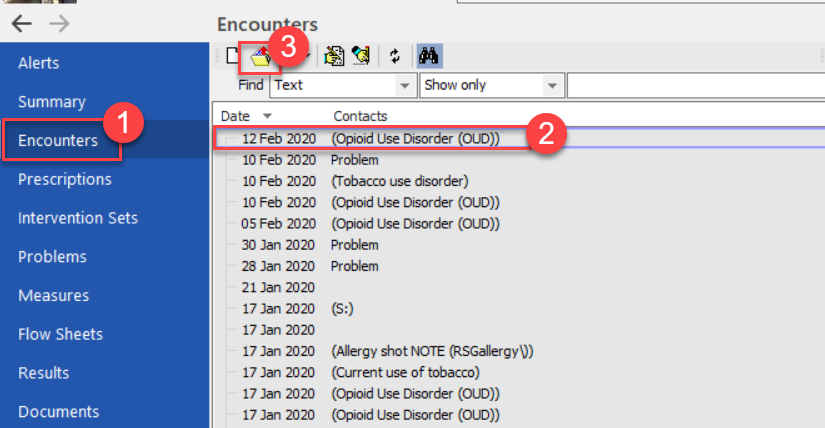
4. The selected Encounter opens. Highlight the text to be deleted, using your cursor.
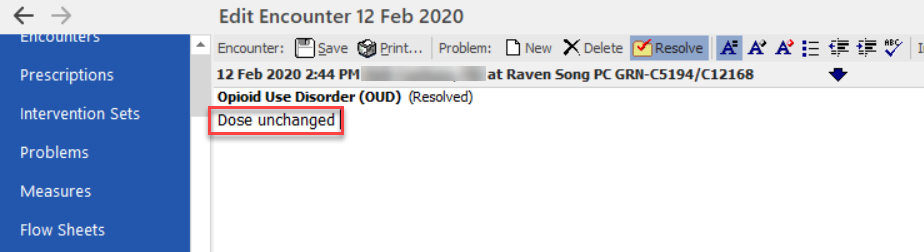
5. Type Entered in error or similar wording per your clinical practice. This replaces the highlighted text.
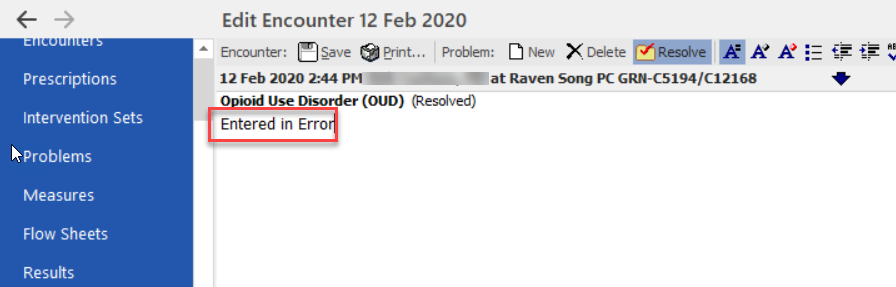
6. Close the Encounter. In Medical Record/Encounters, there is now a New Version created. The version displayed will always be the most recent version.
The corrected note will now show Version X

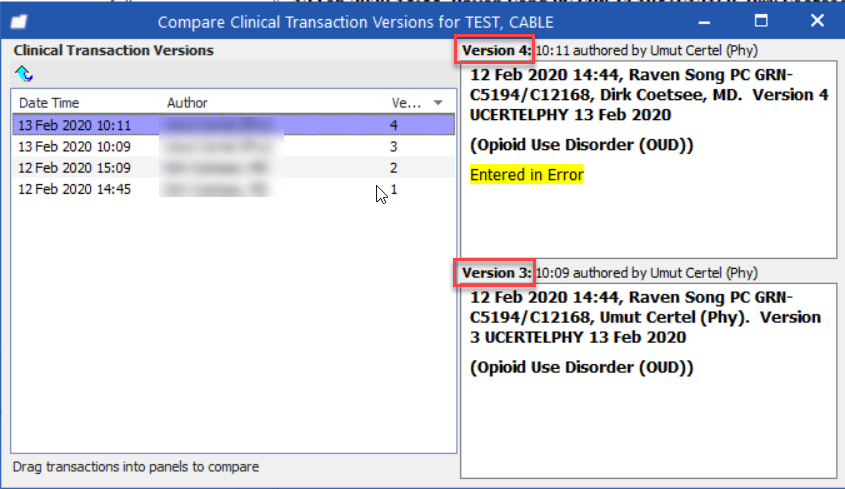
7. If you want to view the previous version, click on the blue link Version X. You will see that all versions are present. This satisfies the requirement that clinical documentation may not be altered.