Background
Launch the Intake Assessment Form
Document the Intake Assessment
Print, Save, and Close the Intake Assessment Form
Edit the Intake Assessment Form
Related Help Files
Background
YICMT NPs who work at Youth Concurrent Disorders Services (YCD) will document their intake assessments in the Youth Concurrent Disorders Services Intake Assessment form.
The Intake Assessment form can be used by up to two clinicians to document the client's intake assessment.
- The first clinician opens the Intake form, documents assessment, marks the form status as Parked and then saves it
- The second clinician opens the same parked form, documents assessment, marks the form status as Complete and then saves it.
Alternatively, if only one clinician is documenting the intake assessment, they would mark the form status as Complete and then save it.
Launch the Intake Assessment Form
In New Encounter, click New Problem then enter typing template code to launch form: YCDI\
It will automatically title the Encounter Note: Youth Concurrent Disorders Services - Intake Assessment
Tip: The form can also be opened from the New Encounter > Actions Panel: Forms.
Document the Intake Assessment
There are two tabs on this form: Assessment and POC/Treatment Plan. The form defaults the client's name, admission date to today (editable), and the logged in user in the Assessment Conducted by field.
Tip: To edit client demographics, see Client Registration Form.
Note: The Admission Date is pulled into the YCD Discharge Form.
Assessment (Tab 1)
To begin, select one from the Location drop down menu.
Note: The Location is pulled into the YCD Discharge Form.
Assessment sections:
There are freetext sections. Enter you assessment in the appropriate fields. Type s\ to record your signature and date/time stamp.
For vital signs, inline editing of measures cannot be done within this form. Enter vital signs as you would in New Encounter. Once the encounter note is created after the form is Saved and Closed, navigate to those vital signs and press the Spacebar on your keyboard to push the vital sign into measures. More info in Enter Measures into New Encounter help file.
Note: History fields can be Copied from a previous YCD Intake Form (if it exists) with the Copy from Last Assessment button.
Medication reconciliation section:
Record how the med rec was completed.
Problem list and allergies sections:
Problems:
This section displays a list of active problems from client's Problem List.
- New: Adds a new diagnosis to the Problem List. This opens the Problem-Diagnosis window (Search for the problem that you need to add and click OK)
- Edit: Edits an existing problem on the Problem List
- Goto Problems: Opens the Problems tab in the medical record

Allergies:
- New: Adds a new adverse reaction. This opens the Problem-Adverse window (Search for the adverse reaction that you need to add, update Nature field and click OK)
- Edit: Edits an existing adverse reaction on the Problem list
- Goto Problems: Opens the Problems tab in the medical record
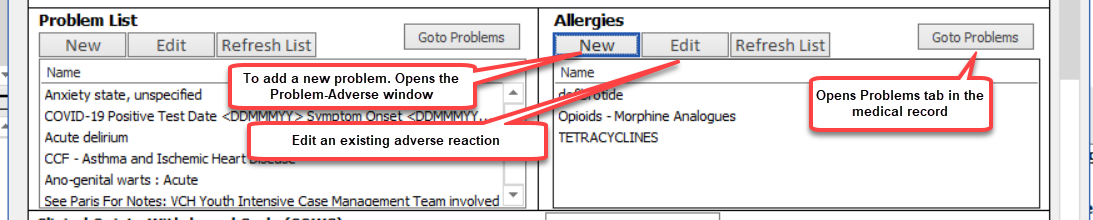
Supplementary Assessment Scores section:
You can enter the assessment scores for the following:
- Clinical opiate Withdrawal Scale (COWS)
- Clinical Institute Withdrawal Assessment for Alcohol use (CIWA)
-
Prediction of Alcohol Withdrawal Severity Scale (PAWSS)
-
Benzodiazepine Risk Assessment
The Substance Use Grid button will launch the Substance Use Assessment form. Once complete, it will be saved as a link in the Encounter.
Tip: To go back to the Intake Form, navigate to Windows and select Intake Form
POC/Treatment Plan (Tab 2)
Point-of-Care Tests section:
The following POC tests can be documented:
- Rapid UDS Results
- Pregnancy Test
- Breathalyzer Test
Last UDS Results will pre-populate if available.
Diagnoses, Treatment Plan, and Disposition sections:
These are freetext fields.
Note: The information entered in Treatment Plan field auto-populates in the YCD Discharge Form's Treatment Plan field. It can be modified/deleted as appropriate.
Print, Save, and Close the Intake Assessment Form
After the form is saved and closed, text from the form is pushed to the encounter note. You can further edit the text in the encounter though these changes would not reflect on the form. The form is saved as a hyperlink in the encounter and can be opened by clicking on the hyperlink or from the Forms segment of the Medical Record.
There are four buttons to save/print the form:
- Print: Clinicians and admin staff may use this button if no modifications are made to the form and only a printed copy is required.
- Print This Page: Clinicians and admin staff use this button to print the current page only
- Print, Save, Close: Clinicians use this button if a printed copy of the Intake Form is required after it is completed.
- Save & Close: Clinicians use this button to save and close the form without printing.
Form Status
The Intake Form has two statuses: Parked and Complete. Parked forms can be edited, while Complete forms cannot be edited.
After saving and closing the form, a prompt will ask if you would like to mark the form as Complete. If you are the last person to document in the Intake Form, make sure you change the status to Complete.
Edit the Intake Assessment Form
Parked Form
Open a New Encounter, enter the typing template code to open the intake assessment form. The system will detect that there is an active (parked) intake assessment form. Click Yes and select which form to open.
Make the edits then Save. Only the updates will write to the Encounter Note.
Completed Form
Completed forms cannot be updated. If you need to add additional information, document a New Encounter Note.
Related Help Files
Youth Concurrent Disorders Services - Discharge Summary Form