Background
View Demographic Version History
Known Issue: Status History Date
Background
Client registration and demographic details can be updated by using the Alter Client shortcut on your navigation toolbar. Additionally you can use Alter Client to review the version history of the client’s demographics, including the EMR user that made the changes.
View Demographic Version History
1. Log into EMR
2. Click Alter Client in the Navigation Toolbar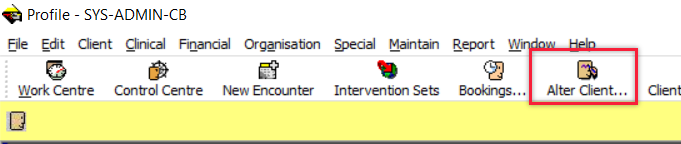
3. Search for the client you wish to review (alternatively, if you have a client’s name in the Yellow banner, clicking Alter Client will open this client’s demographics window)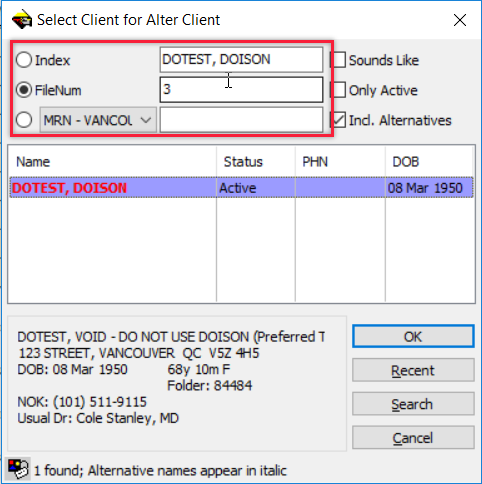
4. Review client’s current demographics. Note the Last update from PARIS: Date on the bottom of the General Tab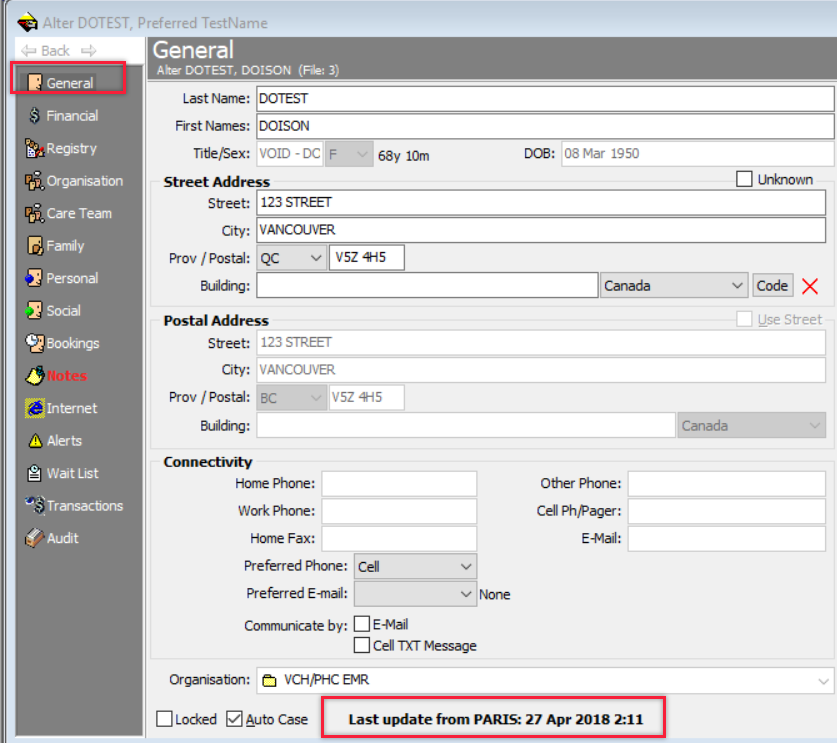
5. To review the version history of the clients demographics, click Show Versions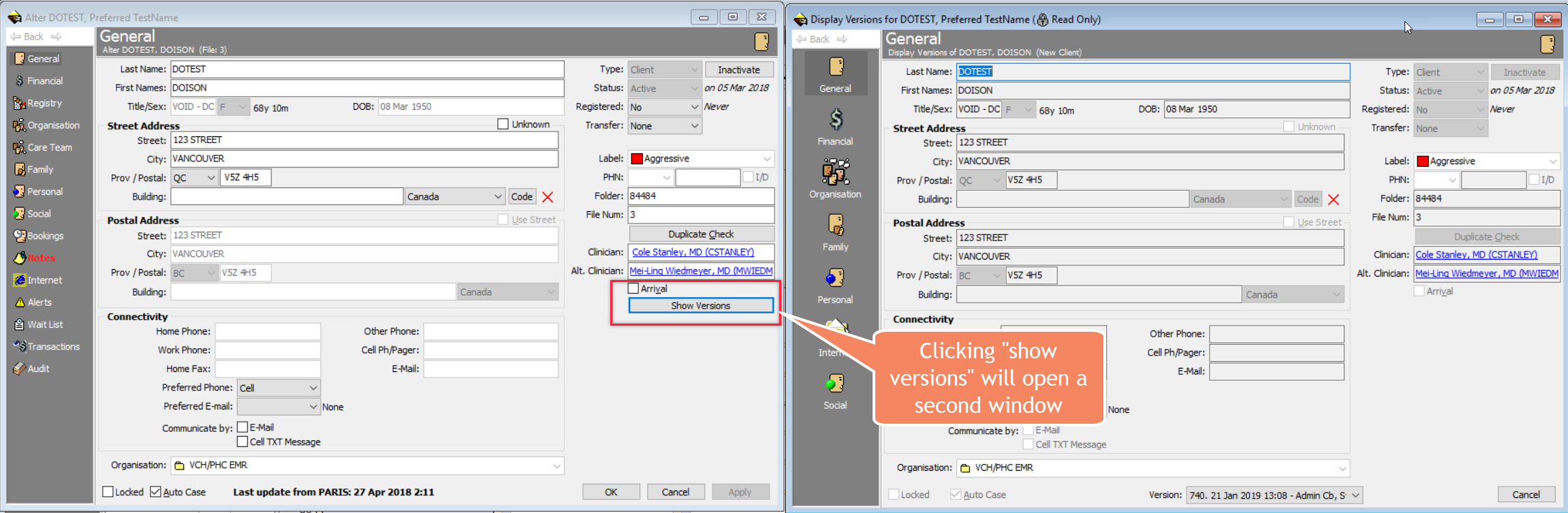
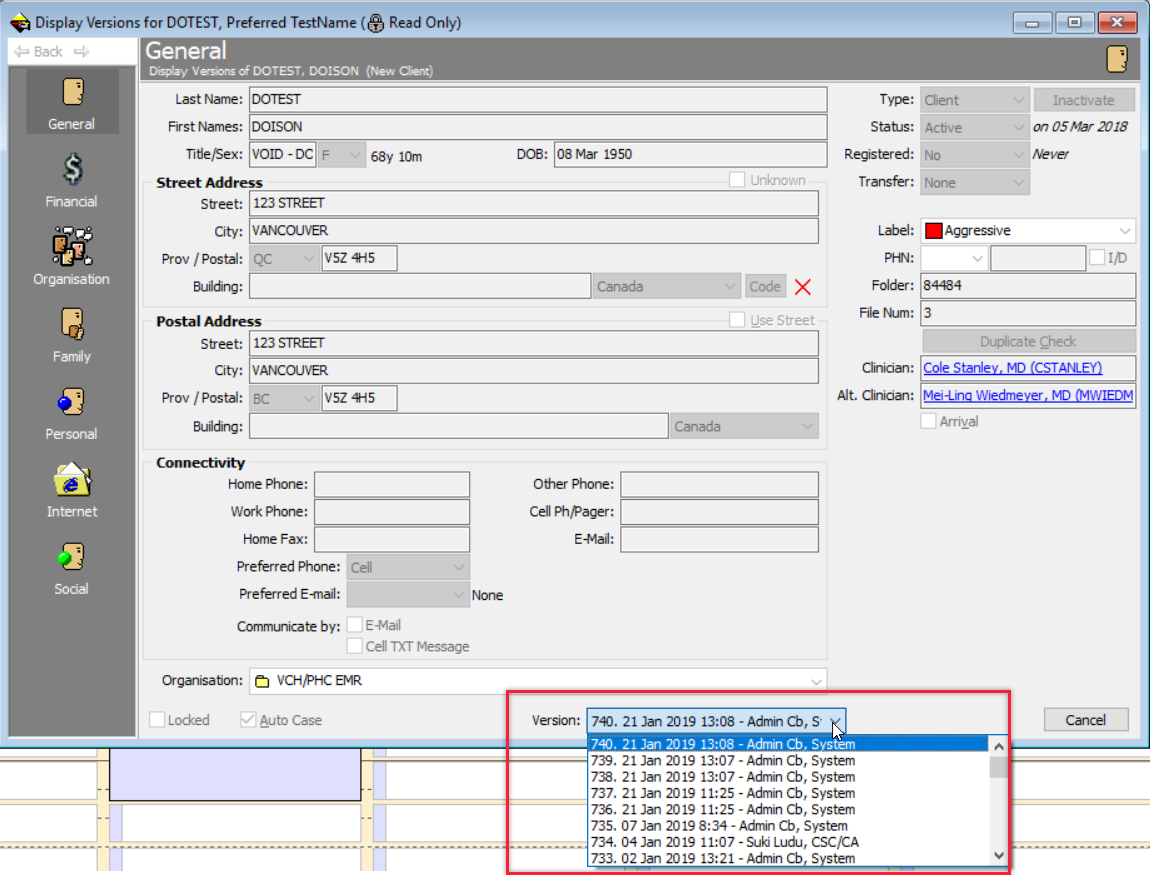
6. Use the Version drop down option to select the version you wish to review, the clients demographics will display the select versions information.
Known Issue: Status History Date
The date next to Status field is the date when the client status was changed. This date will not update until Alter Client window has been saved, closed, and reopened.
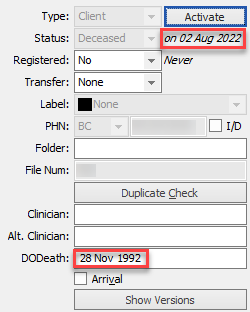
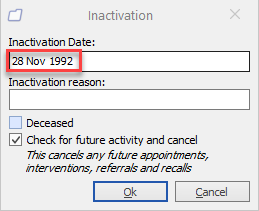
The Status change date is different from Inactivation Date. If a previously-inactivated client is activated, then inactivated again, the Inactivation Date will default to the previous inactivation date. The Inactivation Date can be changed as needed. However, the default to previous inactivation date is to avoid losing the Date of Death (in case a clinic needs to reactivate a deceased client's medical record).