View Forms
Create a New Form
Access a Form
View Forms
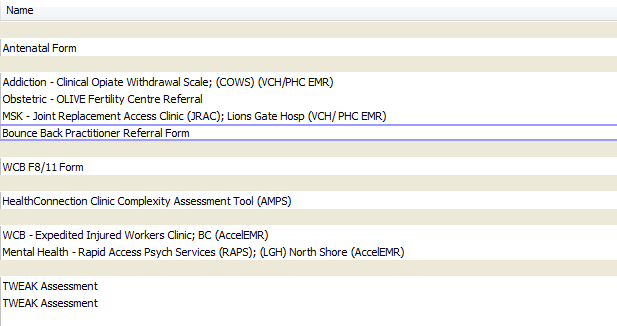
Forms can be viewed from the client’s Medical Record in the Forms screen or the Encounter screen.
In the Forms screen, double-click on the form title to view it.
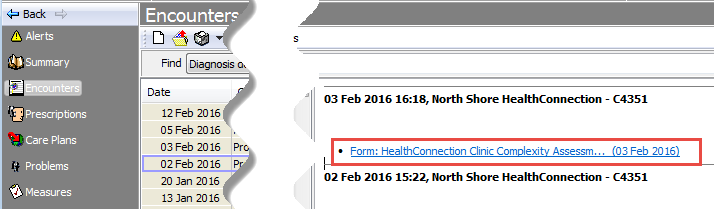
In the Encounter screen, forms can be viewed by single left-click on the blue form link
Create a New Form
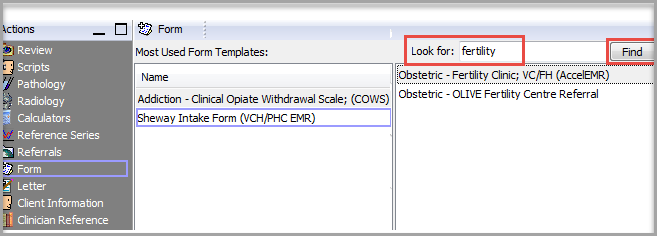
To use any of the custom forms in EMR, open a New Encounter and select Form from the Actions Panel. Note that a list of the Most Used Form Templates displays. This list is specific to the logged-on clinician. To select a form from the Most Used list, double-click on the form title to open it.

When a form is updated, the EMR considers it to be a new form. It will not appear in the Most Used list until the clinician starts using the new (updated) form. For the first time it is used, the clinician will have to type a search term into the Look for field and select Find.
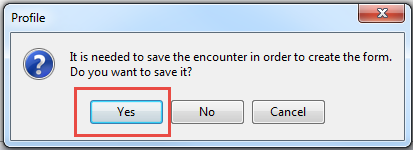
A dialogue box opens with a prompt to save the encounter – click Yes
Practically all EMR forms will pull in specific data from the EMR, most commonly client demographics and contact information. Fill out the remainder of the available fields.
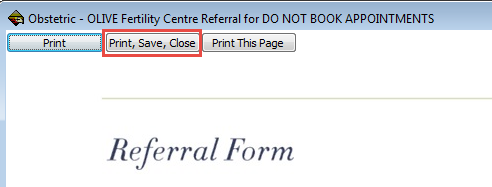
If the form is to be printed, select Print, Save, Close. This saves the filled out form to the client record in the EMR, and allows you to print out a paper copy.
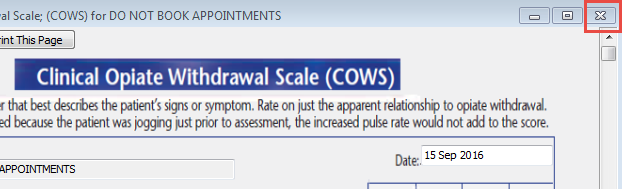
If the form is not to be printed but only to be saved in the EMR, click on the x in the upper right corner.
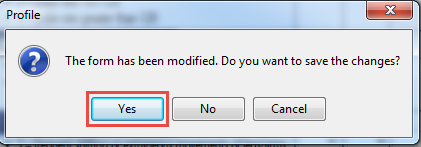
This will prompt you to save the form. Click Yes
Access a Form
The usual way for accessing and filling out a form in EMR is via the Actions Panel from the New Encounter.
1. Click New Encounter and search for patient if prompted
Note: if a patient’s name is indicated in the Yellow banner, clicking New Encounter will open a new encounter for that patient
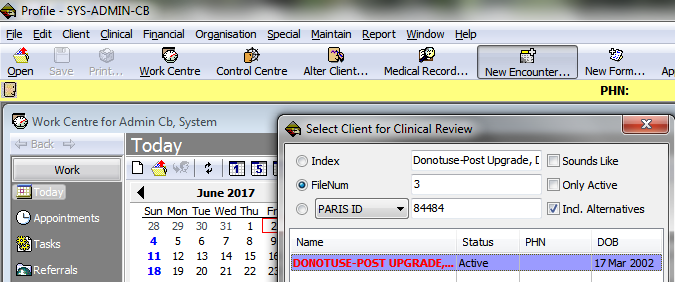
2. In the Actions panel, click Form
3. Use the Find field to enter a keyword and locate the form you require
Note: Once you have used a form a couple of times, it will be remembered in the Most Used Form Templates
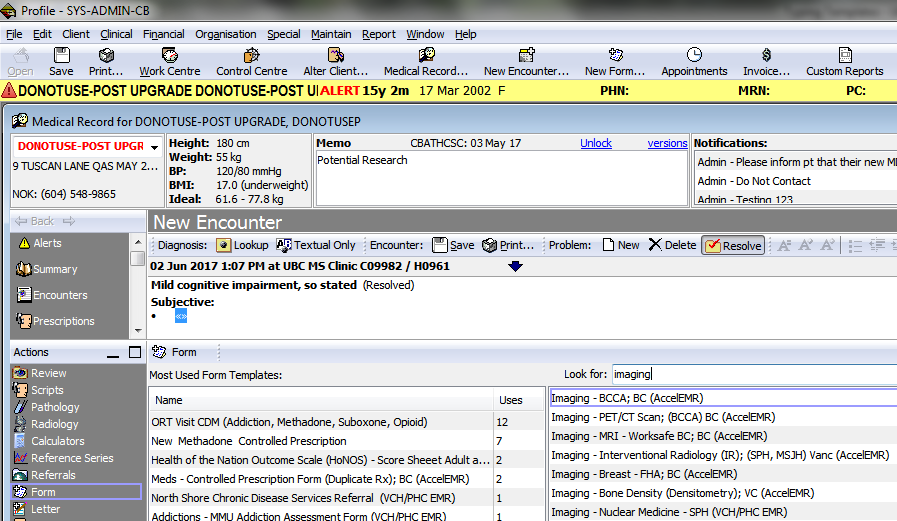
4. Double-click the form you wish to use
To access a form without opening a New Encounter, follow these steps:
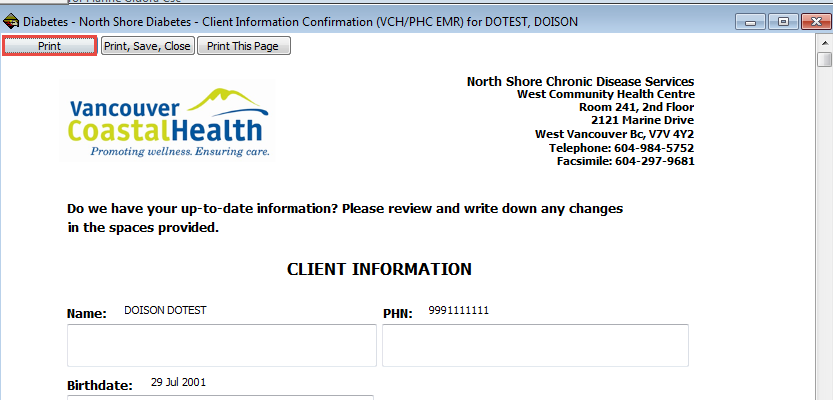
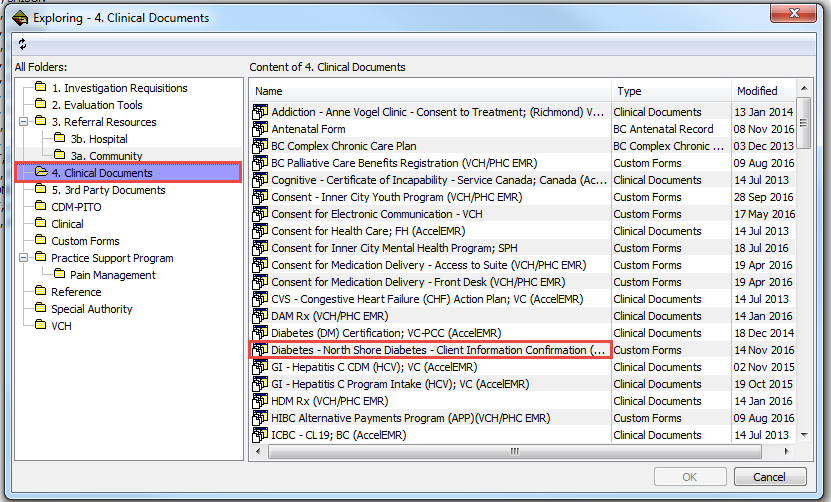
Example: North Shore Diabetes Client Information Confirmation Form
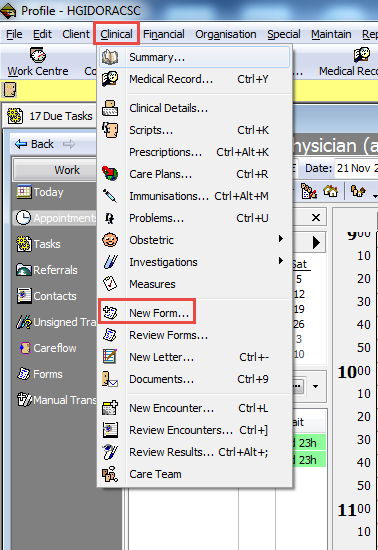
1. From your Work Centre, go to the Clinical tab and select New Form
2. You will be prompted to search for a client – search as usual
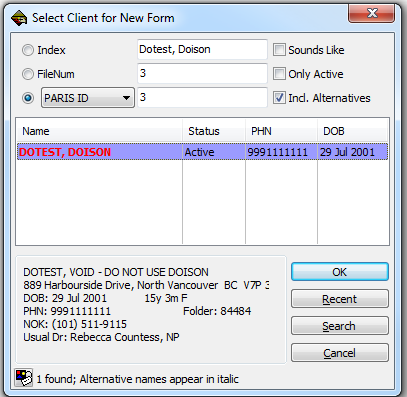
3. Once you select the client, the Forms window will open – select Clinical Documents and Diabetes – North Shore Diabetes – Client Information Confirmation
4. Depending on the Form, fill out as required and Print, Save, Close; or simply Print