Background
Access the Clinical CarePlan (for review and/or entry)
Clinical CarePlan features overview
CarePlan Issue’s List
If the problem (issue) does not exist in the CarePlan Issue list: Add a new Issue
Enter a Care Plan – 5 main steps
Edit a CarePlan
Edit the Problem description
Edit a Goal and/or Action Plan
Create a new Goal and Action plan for an issue with an existing care plan
Change the Status of a Goal e.g. Goal is met
Completed Goals tab
Financial/Social tab
Advance Care Plan tab
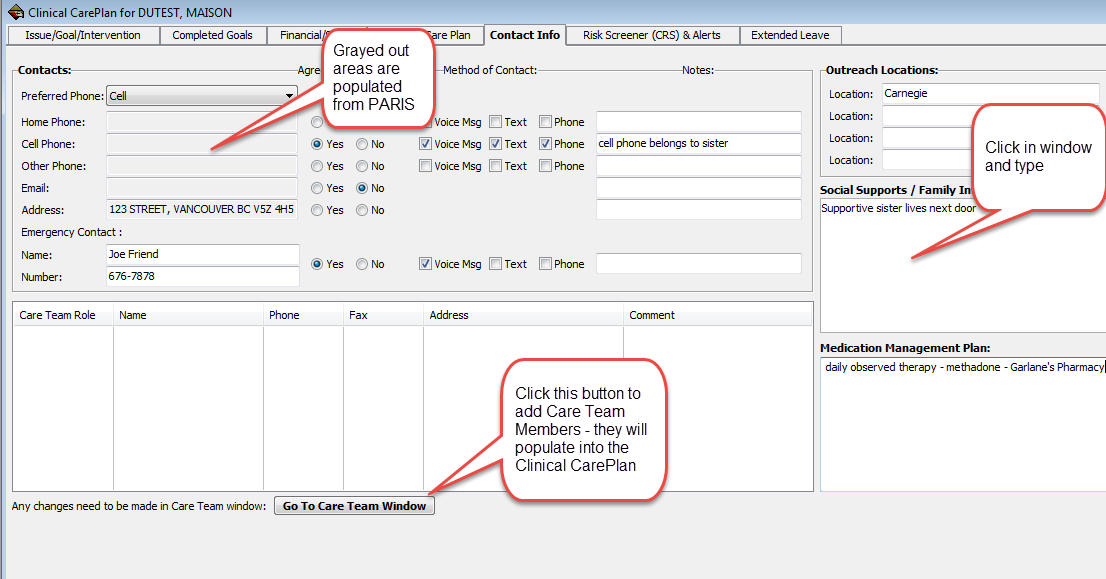
Contact Info tab
Risk Screener (CRS) & Alerts tab
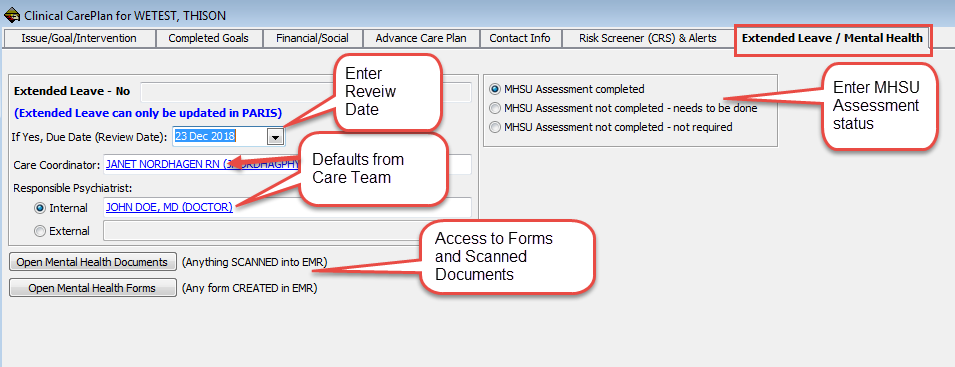
Extended Leave tab
Background
A Clinical CarePlan is now available from New Encounter within the client’s medical record. The Clinical CarePlan Form is used to document issues being addressed by the patient and the integrated care team caring for that patient. Each issue includes one or more patient centered goals, action plans, interventions and outcomes that can be documented on by multiple Integrated Care Team members. This tool facilitates a shared care model, and is designed for staff and clinicians to optimize a team-based care approach.
If you are interested in Integrated Care Team practice and how the Clinical Care Plan can be incorporated into your clinical workflows, please contact your Clinical Coordinator or Team Lead.
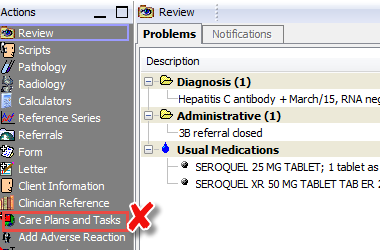
Note: Historically, a set of interventions or recalls in EMR was called Care Plans. To avoid confusion with the Clinical CarePlan, it has been renamed Intervention Sets
| Old view: | New view: |
 |
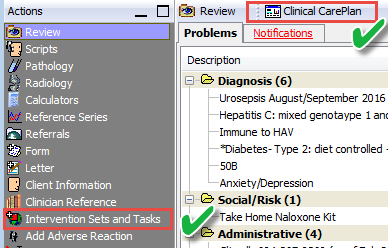 |
For more information on Intervention Sets, click on the hyperlink Clinician Checklist
Access the Clinical CarePlan (for review and/or entry)
To access the Clinical CarePlan to review and/or to enter information in it, you must go to New Encounter and then click on the Clinical CarePlan icon.
Note: If you only want to read the care plan rather than enter in it, you do not have to save it to the New Encounter. Just close the view by clicking on the X and then a pop-up message will appear, “This form has been modified. Do you want to save the changes?” - click No 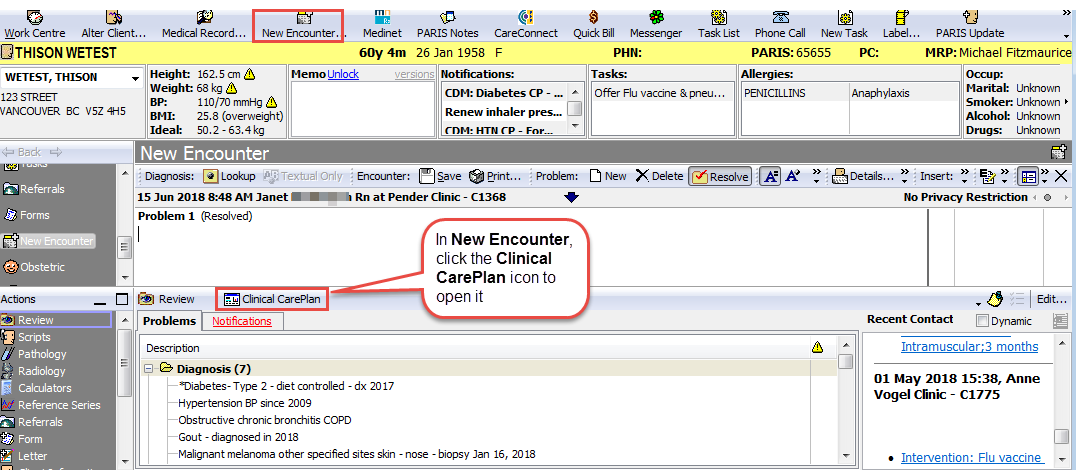
Clinical CarePlan features overview
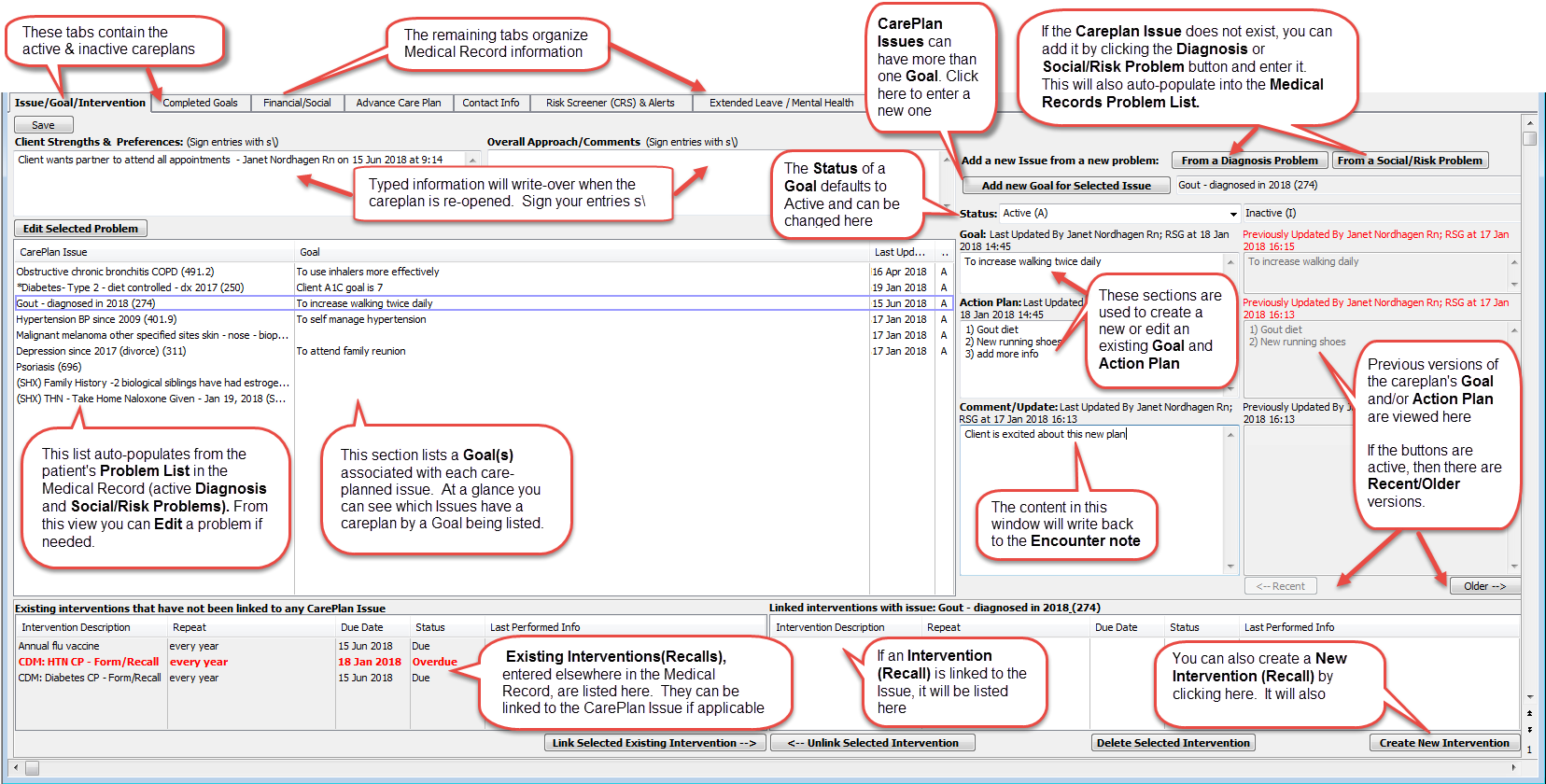
CarePlan Issue’s List
CarePlan Issues are automatically populated from the Medical Record’s Problem List (active Diagnosis Problems and Social History/Risk Problems only). 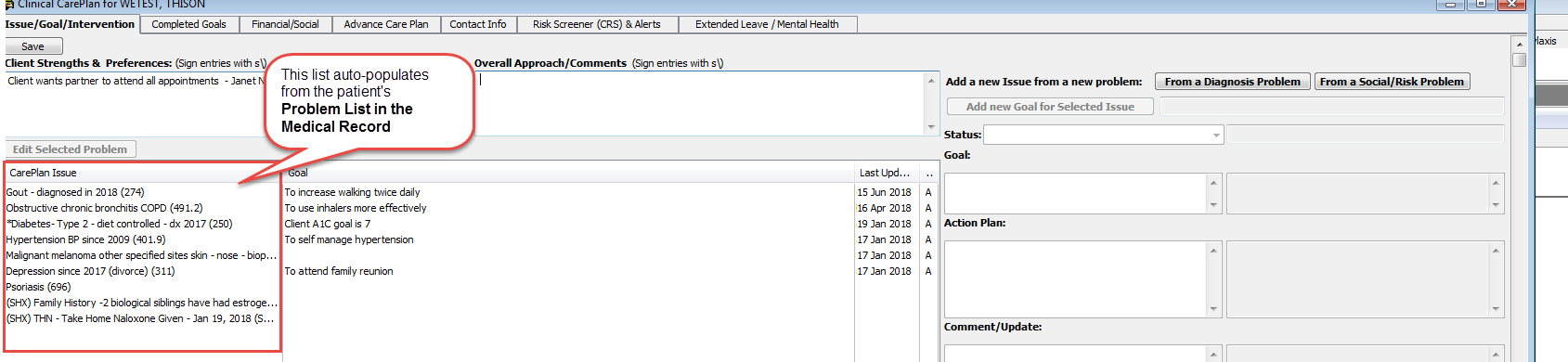
If the problem (issue) does not exist in the CarePlan Issue list: Add a new Issue
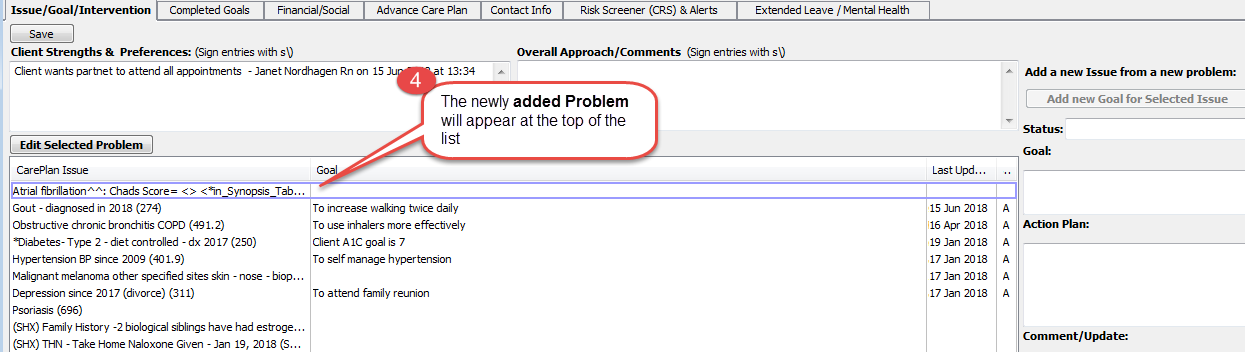
If the Problem you want to care plan does not exist in the CarePlan Issue’s list, then a new problem can be entered from the Clinical CarePlan view. To add a Diagnosis Problem or a Social/Risk Problem, click the applicable button and enter the information. See images on the next page.
Note: This entry will auto-populate back into the patient’s Problem List in the Medical Record - the two lists will be identical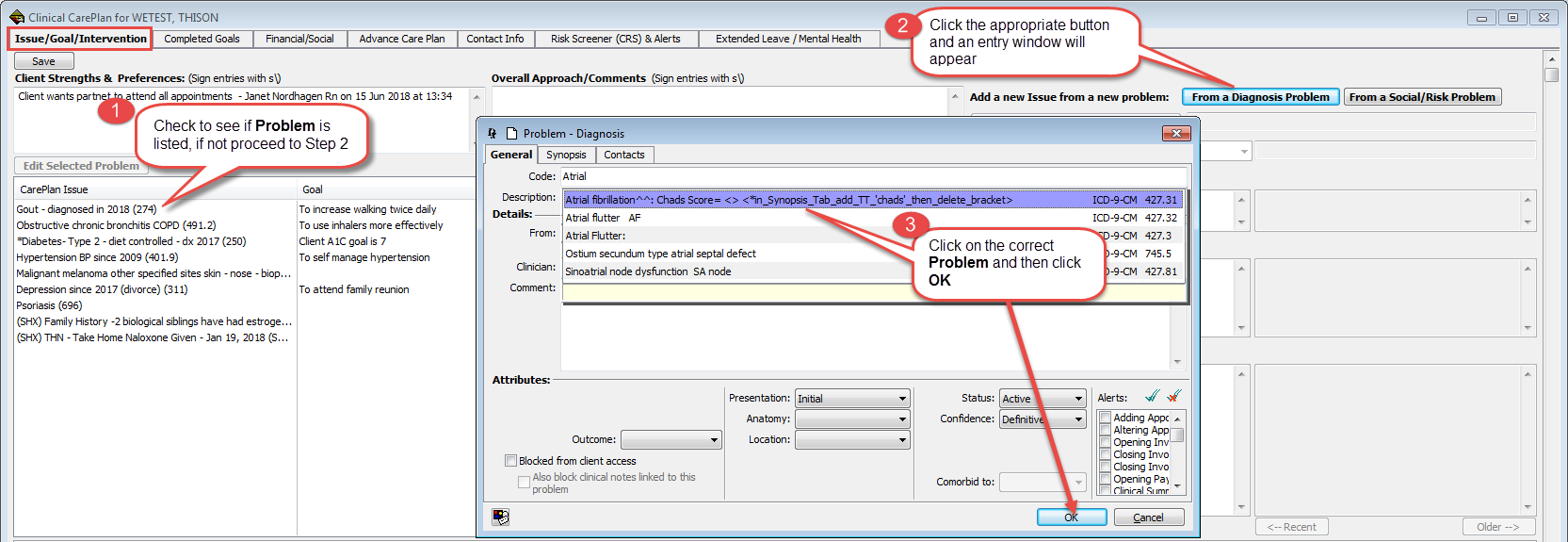
Enter a Care Plan – 5 main steps
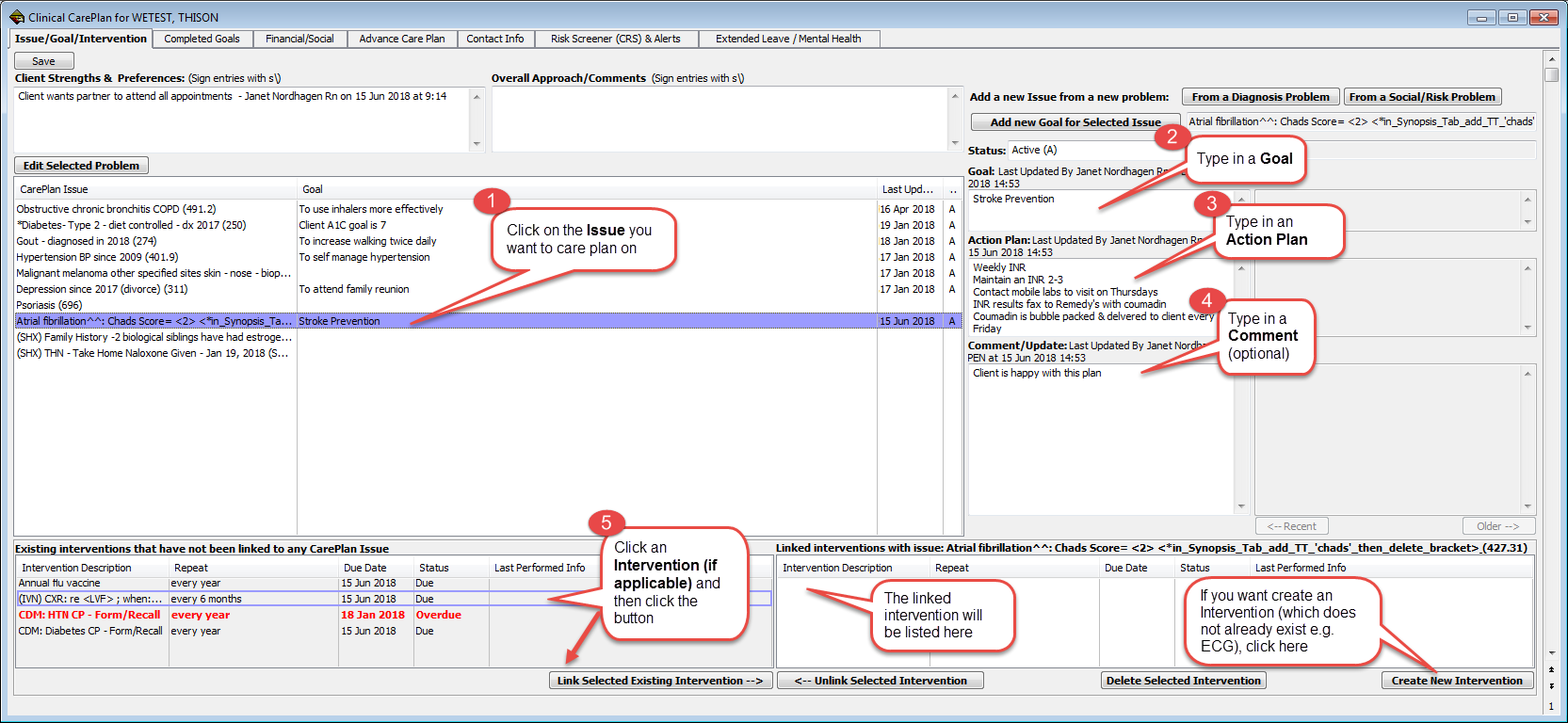
There are five main steps to follow in order to create a careplan:
1. From the CarePlan Issues list, click on the selected issue you want to care plan on
2. In the Goal window, type in a patient goal related to the issue. Note: the Goal Status defaults to Active
3. In the Action Plan window, type in the plan
4. In the Comment/Update window, type contextual information if applicable (optional)
5. Link an existing or create a new Intervention (Recall) (optional)
Save a CarePlan
When you click on Save button, an encounter note is created with the below information:
- Encounter title: CarePlan Issue
- Goals
- Action Plan
- Comments/Update
In addition, once CarePlan is saved, the Problem List row will update to have colour blue font and name with "(see Clinical CarePlan)" to prompt the clinician to look at the Clinical CarePlan.
Edit a CarePlan
You can edit any section of the clinical careplan with previous versions kept in history
Edit the Problem description
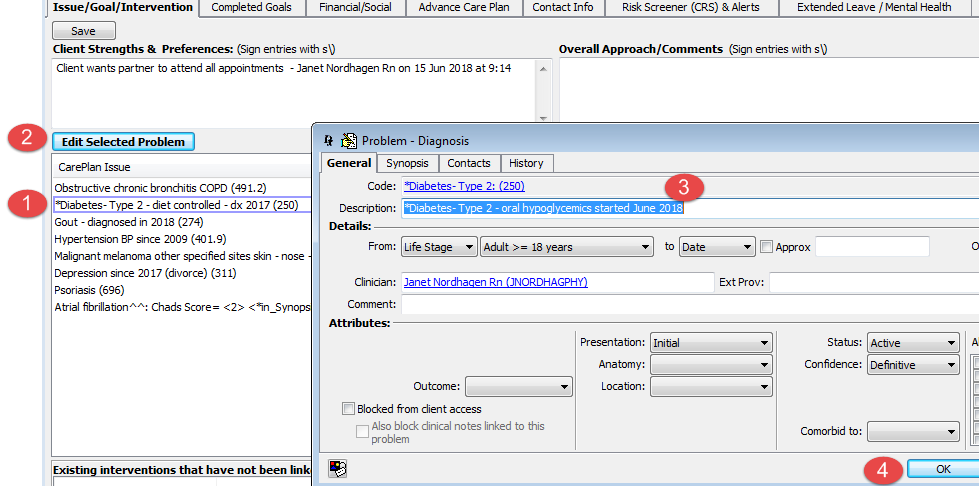
If the problem listed in the CarePlan Issue list needs to be edited:
1. Click on the Issue
2. Click Edit Selected Problem button
3 & 4. Edit the Description and click OK
Edit a Goal and/or Action Plan
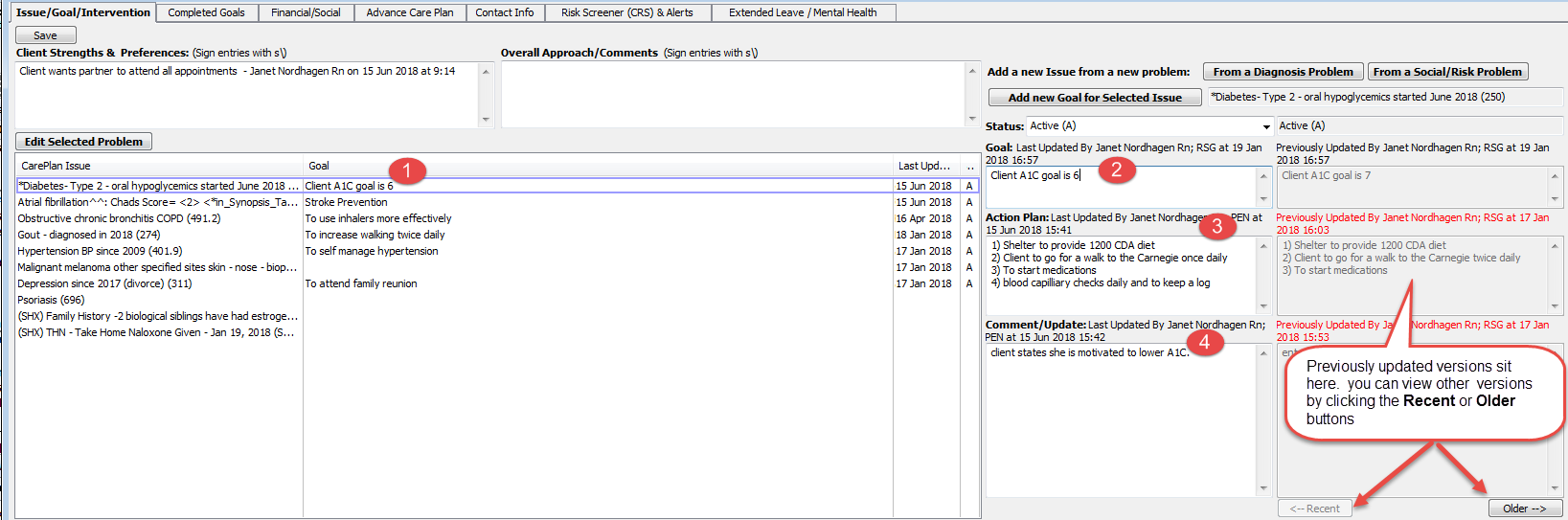
1. Click on the Issue
2. Click in the Goal window and enter the changes
Note: If the Issue requires a completely different goal and action plan, see section 8
3. Click in the Action Plan window and enter the changes
4. Click in the Comment/Update window and enter the changes
Create a new Goal and Action plan for an issue with an existing care plan
1. Click on the Problem in the CarePlan Issue list
2. Click on the Add new Goal for Selected Issue button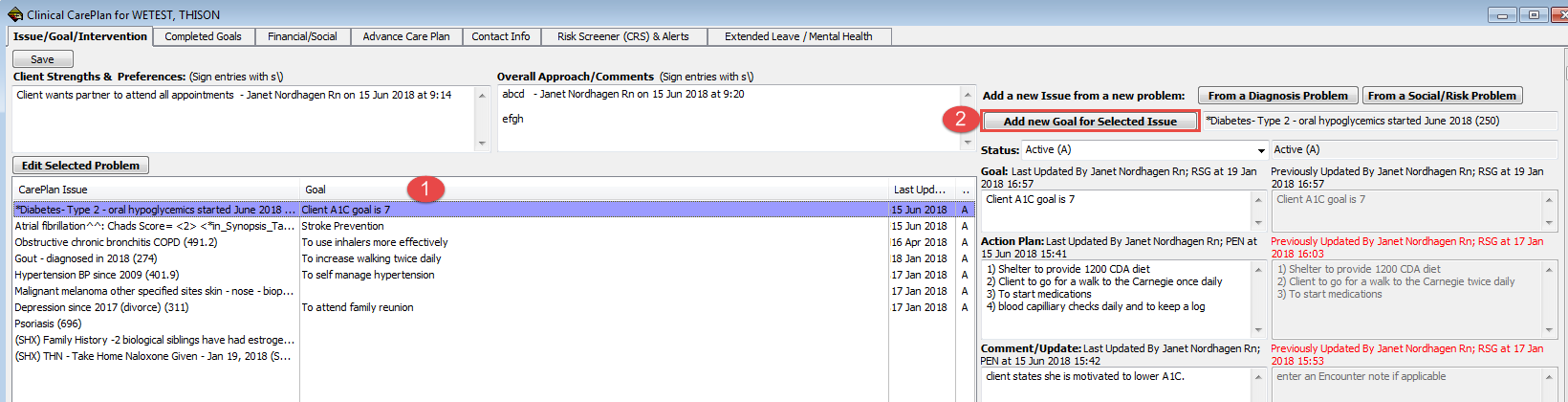
Note: When you create an additional goal for an existing CarePlan Issue, a new line item will be created below the existing one as seen below.
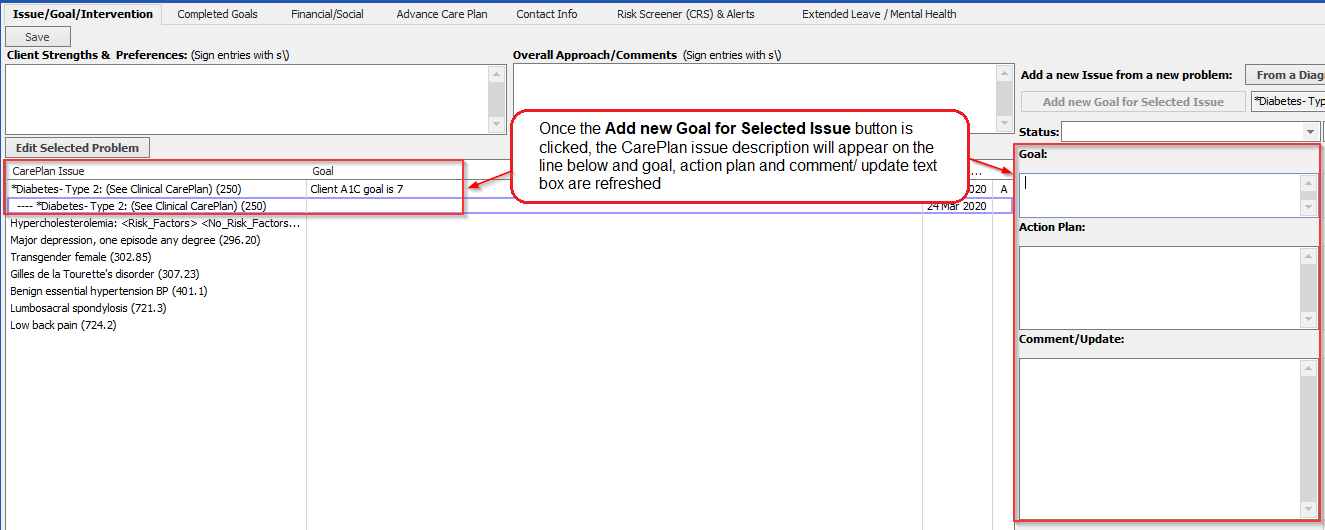
3 - 5. Type in a new Goal, Action Plan and Comment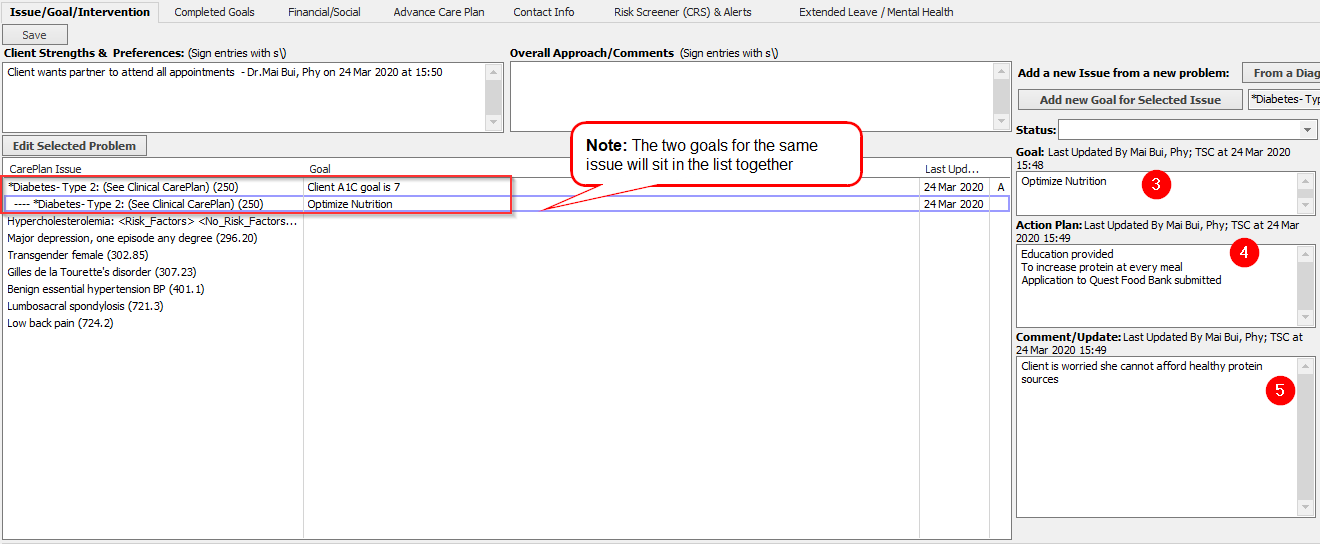
Note: Once a goal has been created, the font will appear blue in the problem list followed by See Clinical Care Plan in brackets as seen below.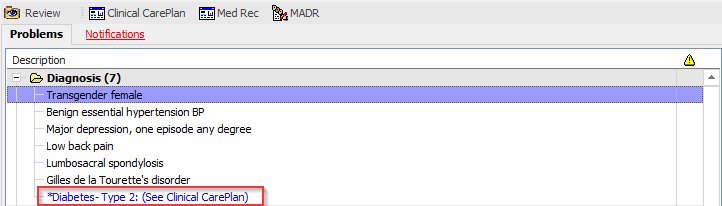
Change the Status of a Goal e.g. Goal is met
There are 5 status choices to choose from. To change the status of a goal:
1. Click on the selected Problem in the CarePlan Issue List
2. Click on the Status drop-down menu and select the appropriate choice 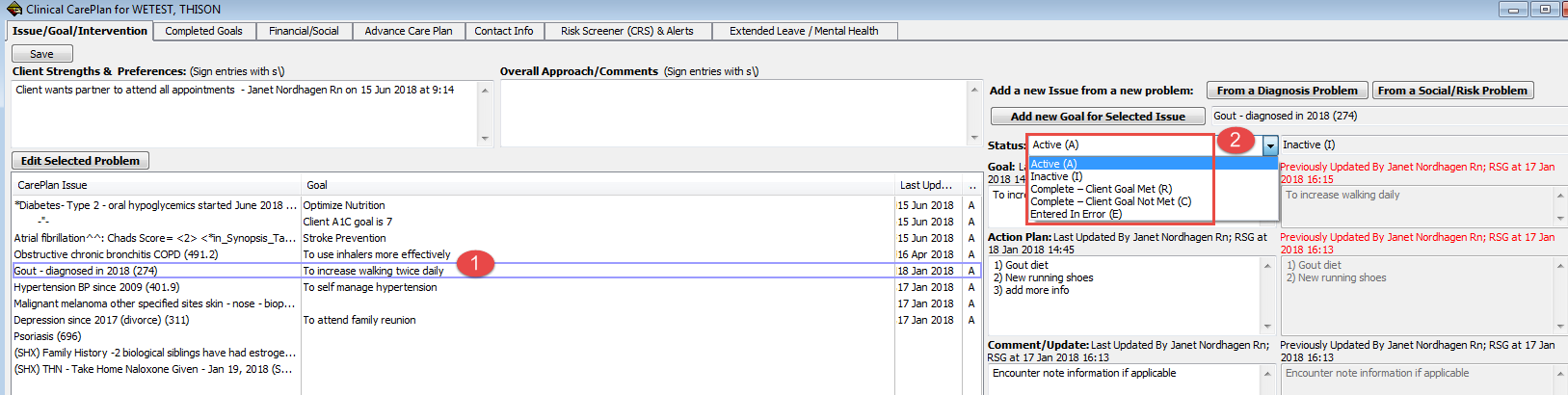
Note: Once the Goal Status has been changed:
Complete goals will move to the Completed Goals tab. Goals with the status of Inactive and Entered in Error will remain in the Careplan Issue list, but will change to italicized grey or red font.
Completed Goals tab
1. Click on the Completed Goals tab
2. Click on the CarePlan Issue if you want to read the details
3. If you want to reactivate the Goal, click the Activate button
Note: The reactivated Goal (and corresponding Issue & Action Plan) will now appear in the Issue/Goal/Intervention tab
Financial/Social tab
1. Click on the tab: Financial/Social
2. Type clinical information in the windows and use tick boxes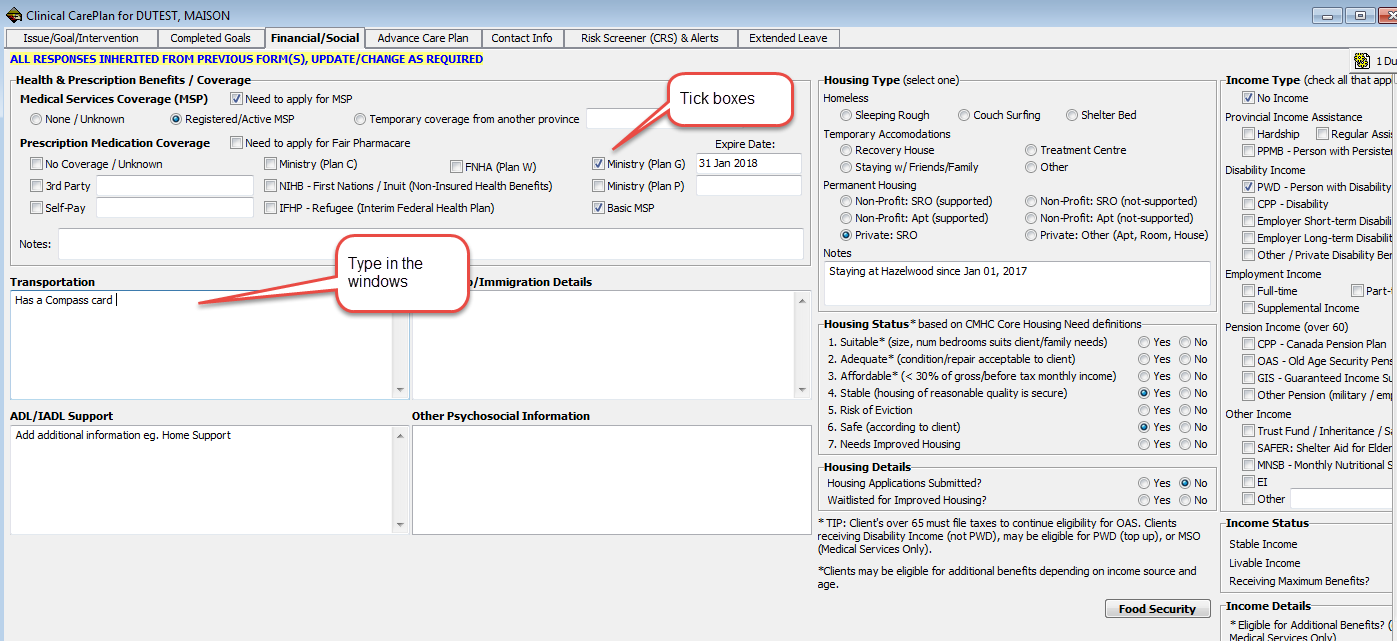
Advance Care Plan tab
1. Click on the tab: Advance Care Plan
2. Type clinical information in the windows and use tick boxes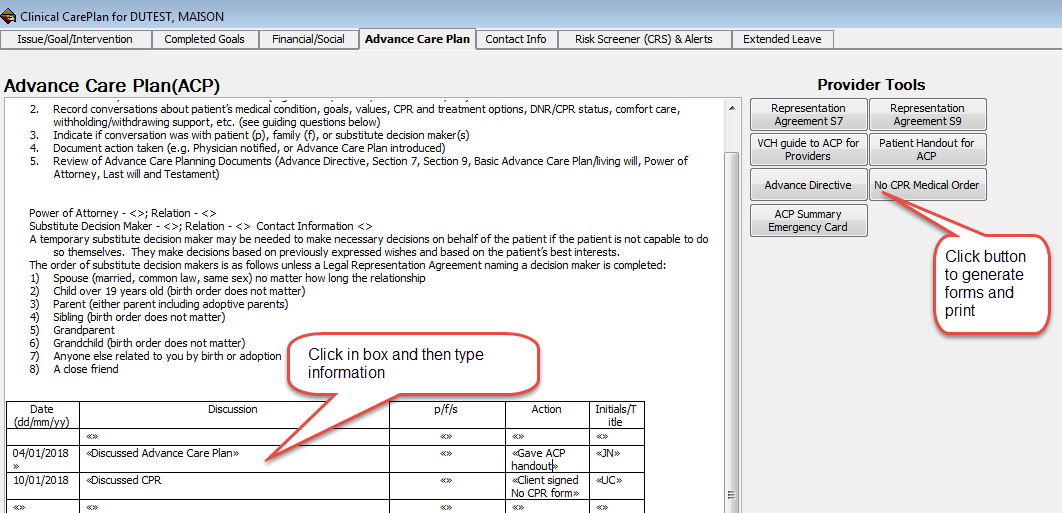
Contact Info tab
1. Click on the tab: Contact Info
2. Type clinical information in the windows and use tick boxes
Risk Screener (CRS) & Alerts tab
1. Click on the tab: Risk Screener (CRS) & Alerts
2. Read Only view of Alerts populated from sections in PARIS and EMR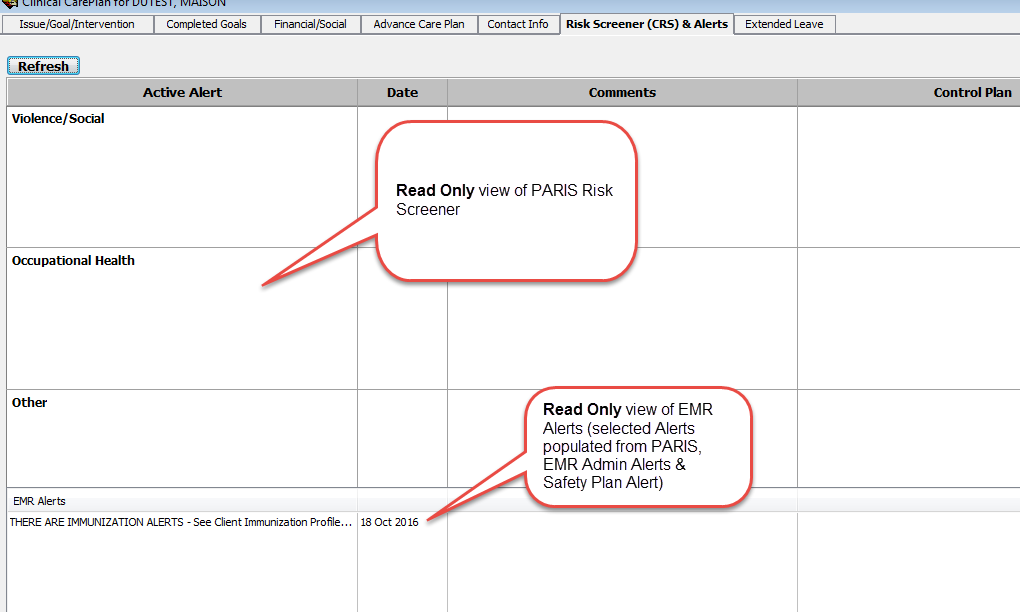
Extended Leave tab
1. Click on the tab: Extended Leave
2. Type in applicable information; click button to access forms and scanned documents