Open the Antenatal Form
Steps to fill the Antenatal Form
Completing a Pregnancy
Related Articles
Known Issues
The electronic antenatal form in Profile will print exactly the same as the official BC Antenatal Record.
When there is an active Antenatal Record for the client, it will appear in the Medical Record's Clinical Info Panel.
Ensuring Visibility of Antenatal Form
When launching the antenatal form within the Profile EMR system, users may encounter a prompt if the "Show Maternity" option has not been marked as ticked in the Client Clinical Details section. This prompt serves as a reminder to ensure that essential maternity-related information is visible and accessible for efficient antenatal care management.
To proceed seamlessly with accessing the antenatal form and its associated functionalities, users are advised to take the following steps:
-
1. Go To Clinical, Clinical Details for the desired Client.
-
2. Tick the "Show Maternity" tick box
-
3. Click OK to save changes.
-
By following these steps and ensuring that the "Show Maternity" option is enabled, users can streamline their workflow when accessing the antenatal form, facilitating efficient and comprehensive antenatal care within the Profile EMR system.
Open a New VCH Antenatal Form
1. Click on the New Encounter icon with a client in context.
2. In the actions tool bar, click on Form.
3. In the Form Search field, enter in Antenatal. Double Click on the VCH Antenatal Form.
Steps to Complete the Antenatal Form
1. In Section 1, fill out the fields as identified in the image.
2. When you click on the Start Current Pregnancy button. A pregnancy window will appear.
Example 1: Based on LMP: Typically you will have a positive pregnancy test with a sure or unsure date of LMP:
Example 2: No LMP available: Choose None
3. Next add previous pregnancy history:
4. You get this screen – You add the information on previous pregnancies by filling out the second half of this section: (However you must first pick None).
An Easy way to enter previous dates:
5. You get this box to fill in the rest of the infant’s info:
You get this:
6. Fill in the rest of part 1 as required:
7. Fill in Part 2 as required:
A er features:
b) If there is an active antenatal form on your patient you will see this in the notification box and you can double click on it to open the form.
Completing a Pregnancy
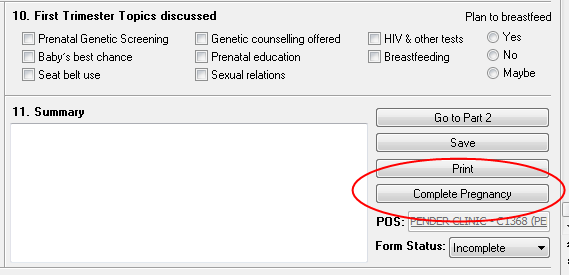
OR
Related Articles
Guide for Completion of the Antenatal Record Part 1 and 2
Known Issues
Problem
At times, the Antenatal Record's status cannot be changed through the form itself after completing the pregnancy. This results in the Antenatal Record to display under Notifications under the Clinical Info Panel of the Medical Record.
Solution
As a workaround, change the status from the Forms:
1. Navigate to the Forms segment of the Medical Record
2. Find the Antenatal Form that you would like Completed
Note: You may need to change the View filter to Full History
3. Right-click the Antenatal Form and click Change Status
4. Click Yes to confirm to change to Inactive
5. Right-click the Antenatal Form again and click Change Status
6. Click Yes to confirm to change to Complete