Contents
Access the OUD Form
Overview of the OUD Form
Adding the Diagnosis to the Problem List
Primary OAT Site
Rx Type
Prescription Information
Add/Update Usual Scripts
Pharmacy Information
Treatment Course
How to Contact
Last 5 Entries (last 2 years)
Harm Reduction
PROMIS Form
OAT Visit Note/Recent Substance Use
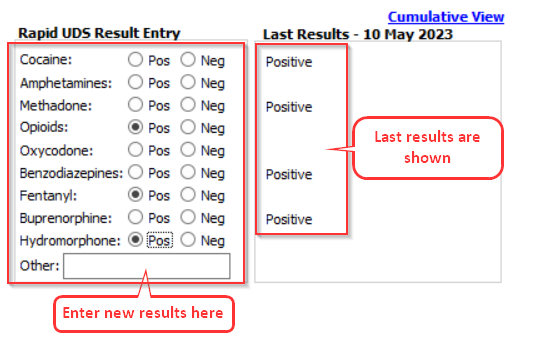
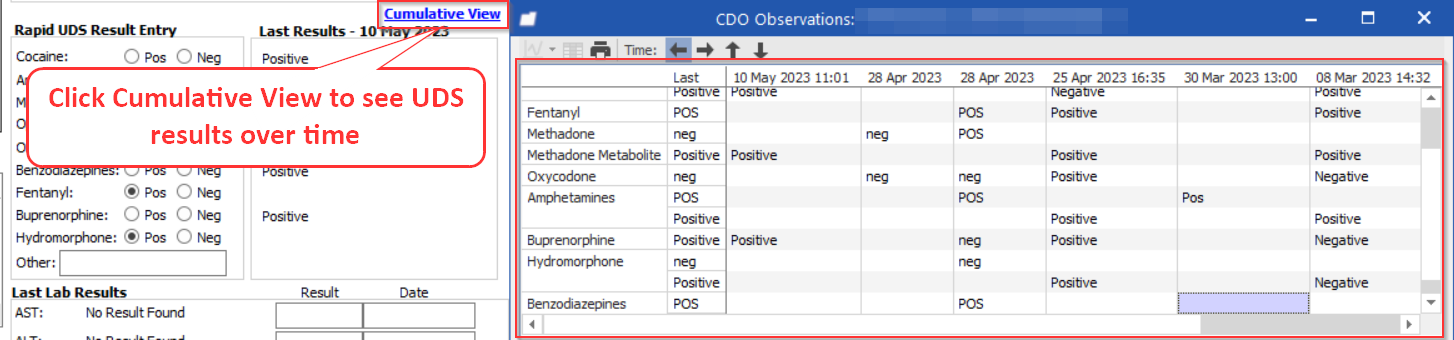
Rapid UDS Results
Prescribing a Primary OAT Prescription
Prescribing a Supplementary Prescription
Generating Controlled Prescription Form
Split Rx
Top-up Rx
Folio Number
Side-by-Side Prescription Format
Printing a Controlled Prescription (Duplicate Rx)
Troubleshooting
Issue: Upon Print, prescription passes through the printer without applying any ink
Issue: Duplicate RX printing is not aligned
Updates
June 2023: the new Harmonized Controlled Prescription Form has been implemented and the OUD form has been enhanced.
September 2024: Option to add electronic signature has been added to the Controlled Prescription form launch through OUD.
Below is the link the instructional video:
New OUD Form & Harmonized Controlled Prescription Form
Access the OUD Form
In New Encounter, type oud\ below Contact 1.
This opens the form and populates the Encounter title with the OUD Diagnosis.
Overview of the OUD Form
Below is a list of all the sections of the OUD Form
1. Adding Diagnosis to Problem List
2. Primary OAT Site
3. Rx Type
4. Prescription Information
5. Pharmacy Information
6. Treatment Course
7. How to Contact
8. Last 5 Entries (Last 2 year)
9. Harm Reduction
10. OAT Visit Note/Recent Substance Use
11. Rapid UDS Results
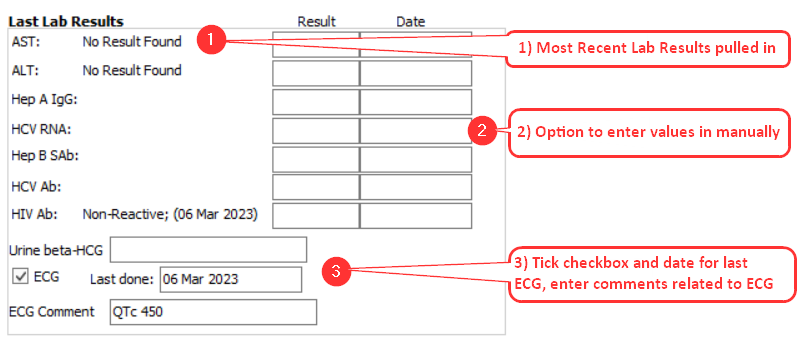
12. Last Labs Results
Adding the Diagnosis to the Problem List
If the Diagnosis already exists in the Problem List, the check box will be automatically checked.
There is also a link to the DSM-5 OUD criteria if you need to refer to it.
If not, tick the check box to add the Diagnosis to the Problem List.
Primary OAT Site
The Primary OAT Site will populate when the form is opened. Different sites can be selected from the drop down.
Note: For external clinics – select the External (not in our EMR) value in the drop down.
Rx Type
To prescribe a Primary OAT or Supplementary medication, you will need to select the appropriate radio buttons.
There is a more inclusive list of medications your can pick from in the Medication dropdown which includes medications from the DUP form.
If the medication is a Safer Alternative, tick the checkbox beside Safer Alternative to indicate this.
Prescription Information
Treatment Stage is a mandatory field when prescribing Primary OAT and needs to be filled before prescribing.
Note: If not prescribing, you can save the form without having to select a treatment stage. The Treatment Stage is saved in the Encounter Note.
Select appropriate value from pick-list.
Fill out all relevant Prescription Information.
If the prescription is for Today or Tomorrow, you can click on the corresponding buttons and the date will automatically be populated into the Starts field.
You can also click on the downward arrow to access the Calendar to select the Starts date.
If you know the number of days or weeks you want to prescribe the medication for. You can enter in the number into the Add field and then click on the Days or Weeks button and the date will automatically be populated into the Ends date field.
You can also click on the downward arrow to access the Calendar to select the Ends date.
Note: The Rx Duration is auto calculated and will always include the first day as 1 day within the duration, so you will notice that the total duration will be 1 day more than the value that you put in the Add field.
(Example: If you add 28 days, the duration will be 29 days.)
Add/Update Usual Scripts
The OUD Form was updated August 7, 2024 to make it possible for prescribers to add or update Usual Scripts in the client's medical record with the prescription information entered in the OUD form. This is achieved by clicking on the Add/Update Usual Scripts button.
After clicking on Add/Update Usual Scripts button, confirmation of the update is given through the following pop-up:
Pharmacy Information
You will see all the Pharmacy locations entered into the Client Care Team under Pharmacy Info.
To access or edit the Care Team information associated with this Client, click on Edit hyperlink.
Once you have finished making your edits the Care Team, you will need to return back to the OUD Form.
To bring this information into the OUD form, you will need to click on Update hyperlink for the updated Pharmacy information to appear in this section.
To add a Pharmacy to the duplicate prescription, you will need to select the appropriate Pharmacy for the list and then click on the Add Selected Pharmacy to Rx button.
To remove the Pharmacy information from the duplicate prescription, click on the Undo button.
Treatment Course
The OUD Form will save the following dates since the Most Recent OAT Start Date.
How to Contact
The How to Contact field contains a free text area where you can enter in any text regarding methods of contacting the client. The Last Updated field will automatically populate the date based on when the last edit was made to this field.
Last 5 Entries (last 2 years)
Under each Prescription Type, you will see the last 5 entries appear in the table.
To Copy the previously entered prescription information from one of these entries, double click on an entry from the corresponding table or select an entry then click on the Copy Selected (or double click) button.
Harm Reduction
The PROMIS Form can be accessed by clicking on the PROMIS Quality of Life button under Harm Reduction, as well as from a New Encounter (see section below). Regardless of how it is accessed, it will show the First and Last Scores with the dates on the OUD form.
In order to get a useful score, answer all the questions and save the form. The score will then be populated into the OUD Form.
To access the PROMIS Form in a New Encounter:
1. Under the Actions toolbar, click on Form.
2. In the Look for: field, type in promis and click on the Find button.
3. The PROMIS Form will appear in the result window below the Look for: field, double click on the Form Name to open.
OAT Visit Note/Recent Substance Use
The section can be quickly filled out at each visit. The Last Value date is shown.
Note: Data entered into this section will also be saved in the Encounter note.
The OAT Missed Dose Date form can be accessed by clicking the Update Missed Doses button. Once the OAT Missed Dose Date form is closed, the Missed doses in the Last 28 days should auto-update to include the new date(s) inputted. For more information on OAT Missed Doses, see the New Measure OAT Missed Dose article.
Rapid UDS Results
Last Labs Results
Prescribing a Primary OAT Prescription
To create a Primary OAT prescription, select the Rx Type: Primary OAT radio button.
Select the Medication by clicking on the dropdown arrow. The list now contains all OUD medications including the ones that appear in the DUP Form.
For medications that are considered a Safer Alternative, tick the checkbox to signify this.
Complete the relevant fields for the Prescription.
On selecting Create Rx a visual representation of the duplication prescription will appear.
The following will show in Prior Scripts:
- date
- medication name
- dosage
- direction for use
- duration of the OAT
The default view No Grouping shows the medications in reverse chronological order of prescribing them.
Prescribing a Supplementary Prescription
Within the OUD Form there is the option to prescribe up to 3 Supplementary Prescriptions.
To create a Supplementary Prescription, click on the corresponding radio button and fill out all the required fields.
Note: Treatment Stage is not included in this section and is not a required section to create a supplementary prescription.
On selecting Create Rx a visual representation of the duplication prescription will appear.
Generating Controlled Prescription Form
To generate a visual representation of the Controlled Prescription ensure that you have filled in all the appropriate information in the Prescription section. Then click the Create Rx button.
Split Rx
Example:
Patient wants 1 day’s dose to take to a different pharmacy.
1) After you have filled out the OUD Form click Split Rx button.
You will notice two prescription will appear on the screen. The prescription on the right will indicate 1 day. The prescription the left will indicate the remaining days.
Top-up Rx
Example:
Patient needs an additional Rx for 100 mg for today.
Click the Top Up Rx button to get a one day Rx which defaults to today's date.
A prompt will appear, enter in the top up amount in the Please enter the top-up amount: field and then click on the OK button.
You will notice two prescription will appear on the screen. The left prescription is the original order. The right prescription will indicate the 1 day top up and will auto populate the Direction for Use field.
Folio Number
Below the Prescriber ID, there is a field where you can enter in the folio number. When doing this, it will automatically advance the counter for the next prescription.
Note: This number can be easily overwritten if needed.
Side-by-Side Prescription Format
Prescribers can choose to print to the side-by-side EMR printer friendly sheets if you have access to them (ordered through the College website). The side-by-side sheets do not contain the prescriber's name defaulted on them like the current duplicate rx pads. The prescriber's information will be added to the prescription at time of printing.
To switch to the side-by-side printing format, click on the Use Side-by-Side Rx format button:
You will then be taken to a preview of the side-by-side format. If you would like to go back to the original duplicate rx format, click on the Revert to Rx Pad format button:
NOTE: At this time, you need to manually feed the side-by-side rx sheets into the front single sheet feeder (the same way that the duplicate rx sheets are currently fed through). The Profile EMR team is working on procuring lockable printer trays to store the side-by-side rx sheets.
Printing a Controlled Prescription (Duplicate Rx)
Remove staples from Rx book.
Remove paper script from Rx book.
Open front of printer.
Place paper script Head First and Face Up (same as a methadone Rx.)
Adjust paper edge guides.
Click the Save and Print button on the form in EMR. Select again for duplicate copy. The form will be saved to the encounter note.
Please note this form will not appear in the scripts module so ensure the current dose is reflected in the Usual Scripts tab in EMR.
Troubleshooting
Issue: Upon Print, prescription passes through the printer without applying any ink
This often occurs when setting up a new printer because printer settings are incorrect.
Resolution:
1. Hold Shift key and Print button at the same time to launch the Print Setup window
2. Click More Settings to launch the Print window
3. Click Properties... to launch the Properties window
4. In Printing Shortcuts tab, ensure that these are the settings:
5. Click OK on the windows to close
6. In the Print Setup window, prior to clicking OK to print, tick the Always use specified Printer settings for this report on this computer