Background
Open a Second Appointment Screen
Move Appointments between Screens
Background
This Help File will show you how to open two different appointment screens for the same clinic.
Open a Second Appointment Screen
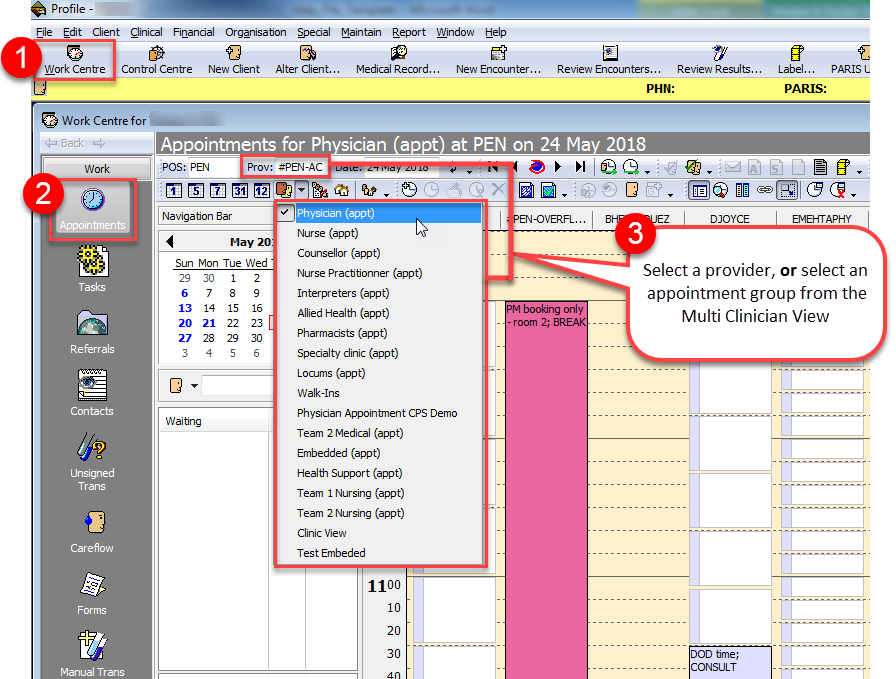
1. Click on Work Centre.
2. Click on Appointments to view the appointments screen.
3. Select a provider or group, as applicable.
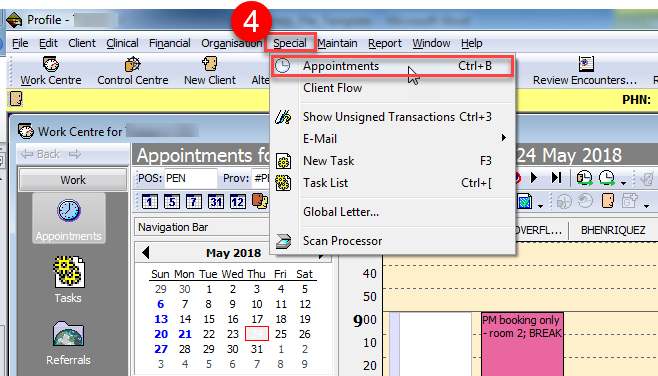
4. Go to Special and select Appointments from the drop-down menu.
5. A new appointment screen will open. In the new window, change the appointment view as desired (e.g. select a different provider or appointment group, change the date, etc.).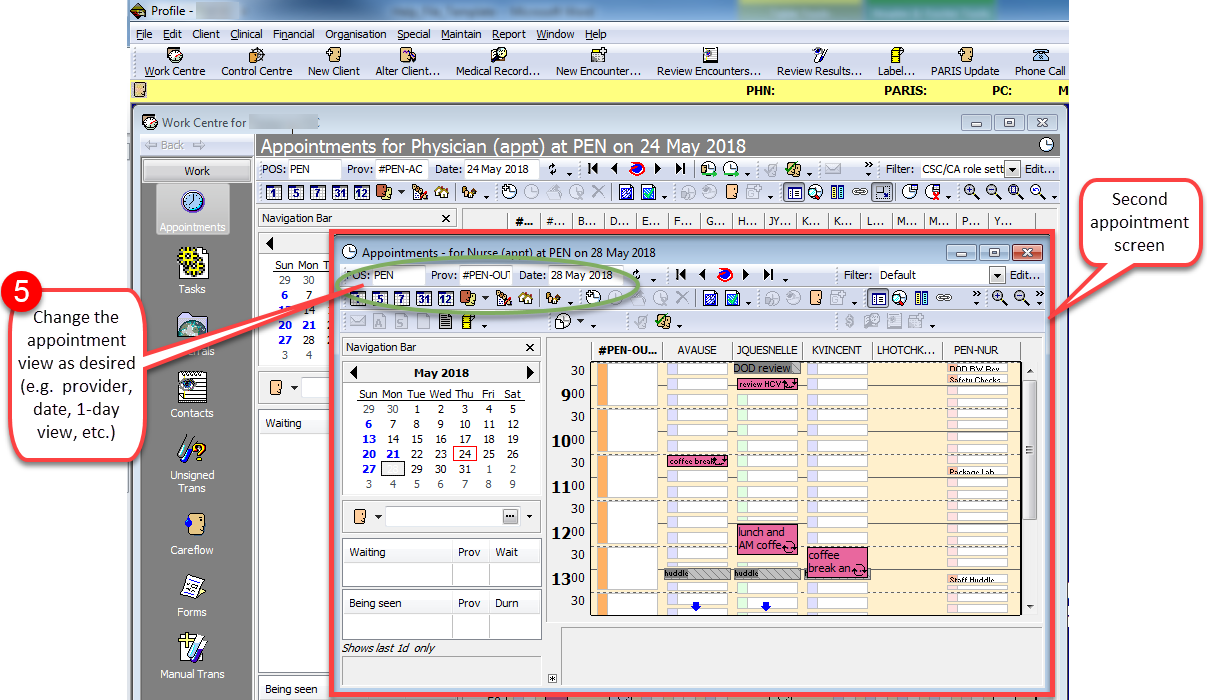
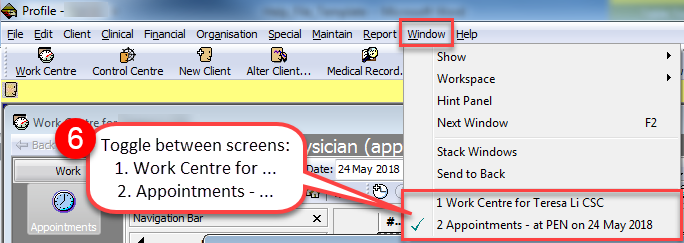
6. From the Window drop-down, toggle between the appointment screens.
Move Appointments between Screens
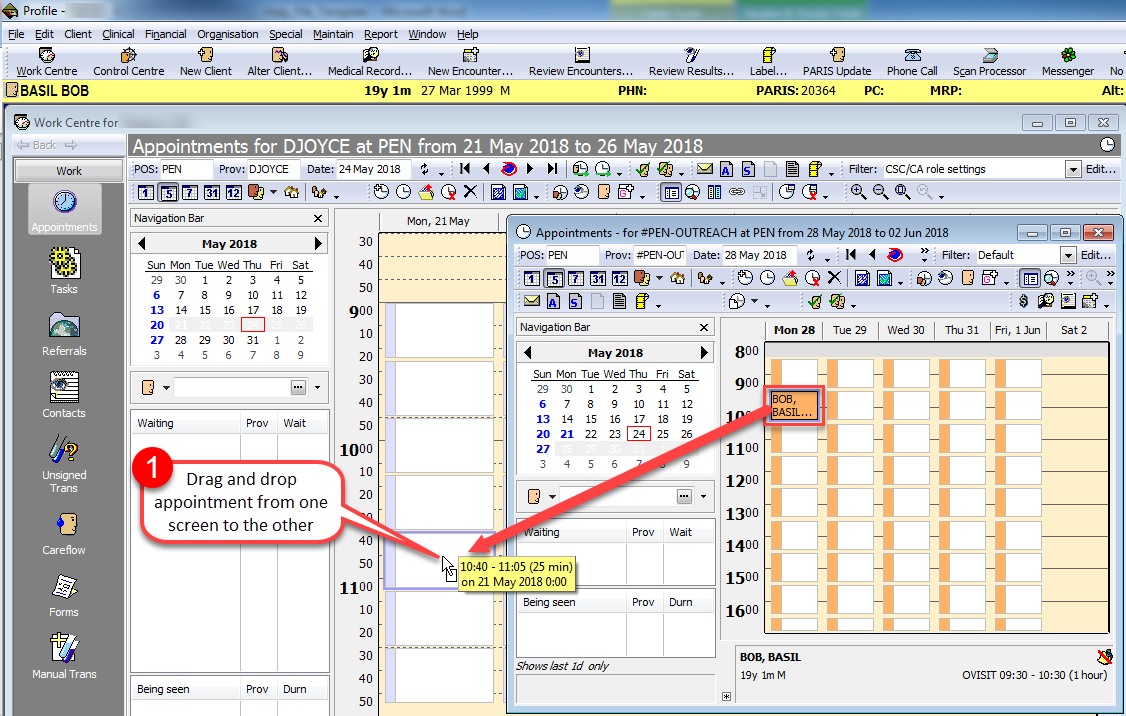
You can move/copy/link appointments from one appointment screen to the other.
1. Drag and drop the appointment from the overlaying appointment screen (the screen on the top) to the new appointment slot in the underlying appointment screen.
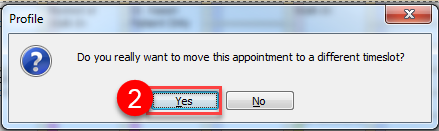
2. “Do you really want to move this appointment to a different timeslot?” message will appear.
Click Yes.
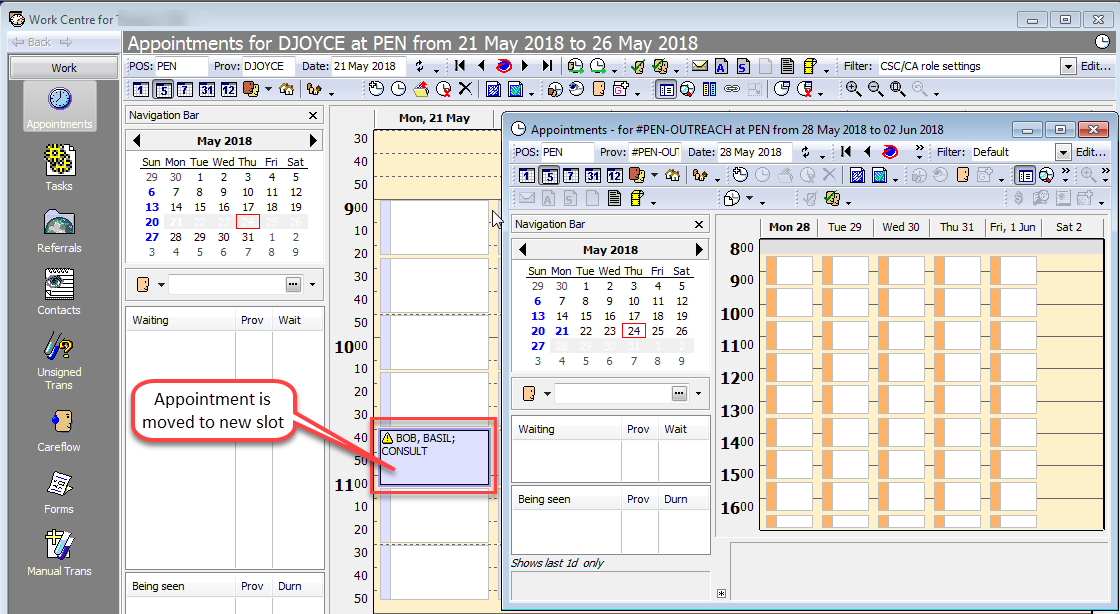
NOTE: You can also drag the appointment from the overlaying appointment screen to the underlying appointment screen’s Patient Holder, and then move it to the desired appointment slot from there.